Apps are currently in alpha. The feature works but is still evolving.
Apps let you extend Twenty with custom objects, fields, logic functions, AI skills, and UI components — all managed as code.

Prerequisites

Before you begin, make sure the following is installed on your machine:
  • Node.js 24+Download here
  • Yarn 4 — Comes with Node.js via Corepack. Enable it by running corepack enable
  • DockerDownload here. Required to run a local Twenty instance. Not needed if you already have a Twenty server running.

Step 1: Scaffold your app

Open a terminal and run:
npx create-twenty-app@latest my-twenty-app
You will be prompted to enter a name and a description for your app. Press Enter to accept the defaults. This creates a new folder called my-twenty-app with everything you need.
The scaffolder supports these flags:
  • --minimal — scaffold only the essential files, no examples (default)
  • --exhaustive — scaffold all example entities
  • --name <name> — set the app name (skips the prompt)
  • --display-name <displayName> — set the display name (skips the prompt)
  • --description <description> — set the description (skips the prompt)
  • --skip-local-instance — skip the local server setup prompt

Step 2: Set up a local Twenty instance

The scaffolder will ask:
Would you like to set up a local Twenty instance?
  • Type yes (recommended) — This pulls the twenty-app-dev Docker image and starts a local Twenty server on port 2020. Make sure Docker is running before you continue.
  • Type no — Choose this if you already have a Twenty server running locally.
Should start local instance?

Step 3: Sign in to your workspace

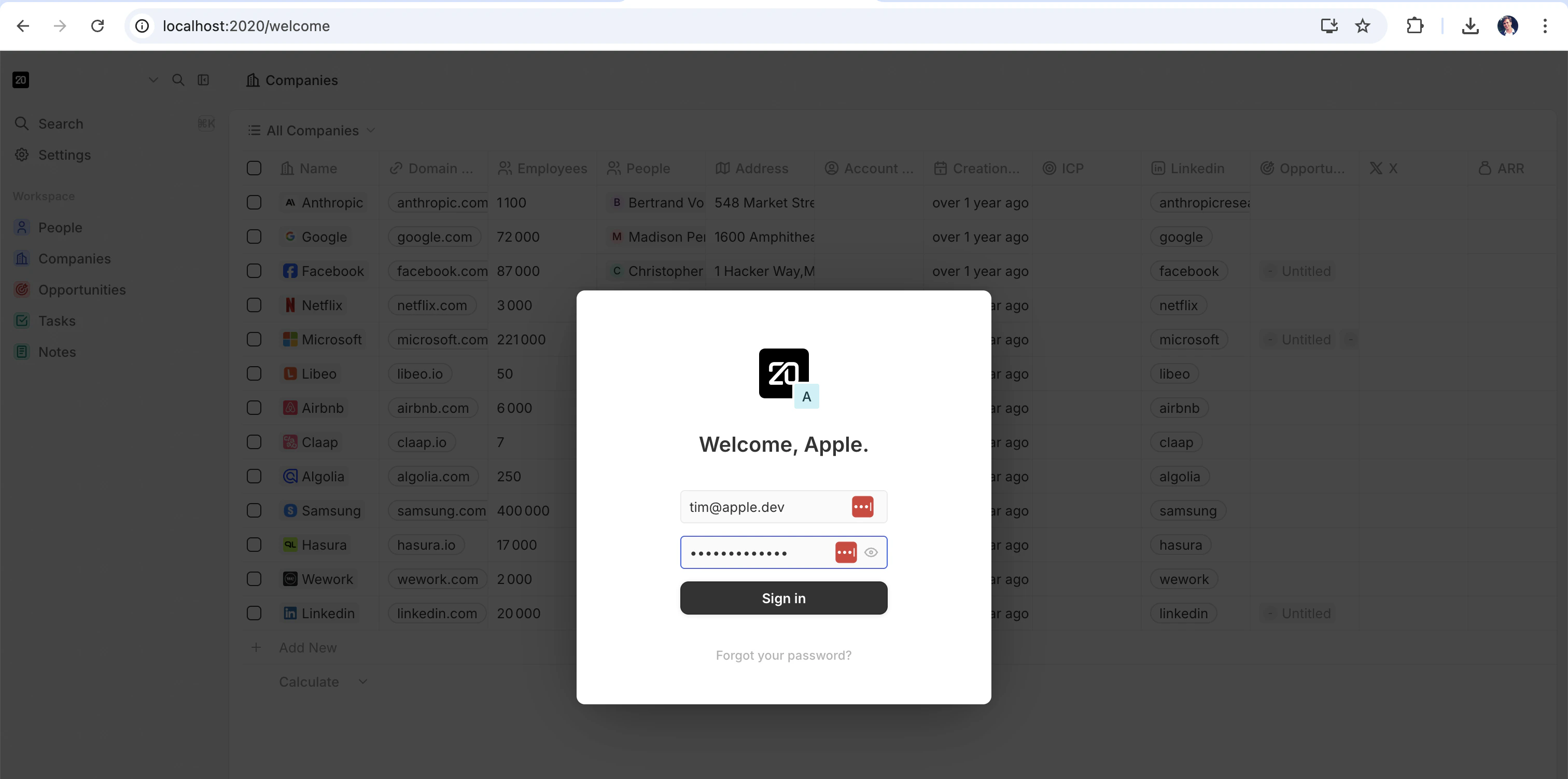
Next, a browser window will open with the Twenty login page. Sign in with the pre-seeded demo account:
  • Email: tim@apple.dev
  • Password: tim@apple.dev
Twenty login screen

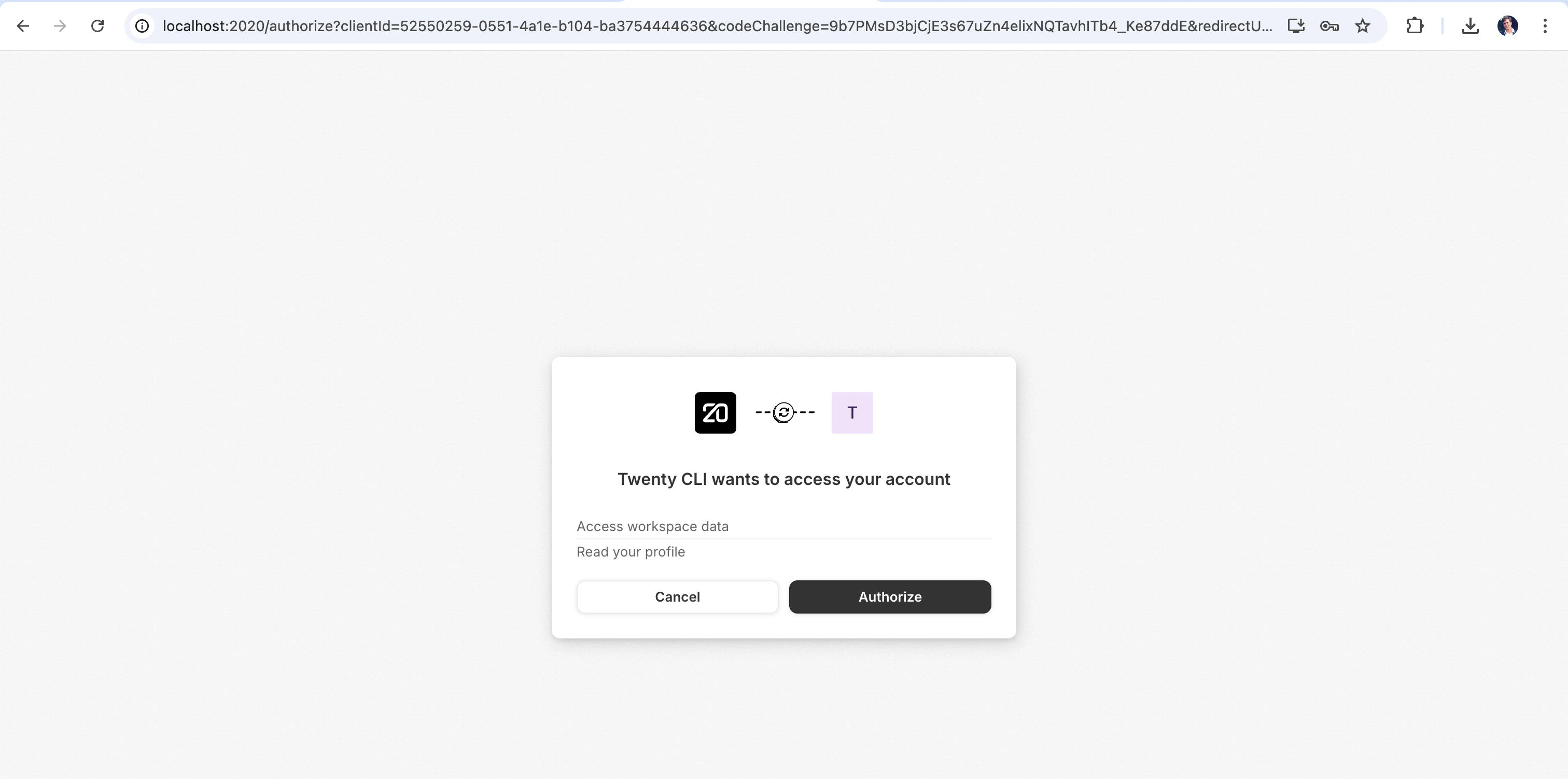
Step 4: Authorize the app

After you sign in, you will see an authorization screen. This lets your app interact with your workspace. Click Authorize to continue.
Twenty CLI authorization screen
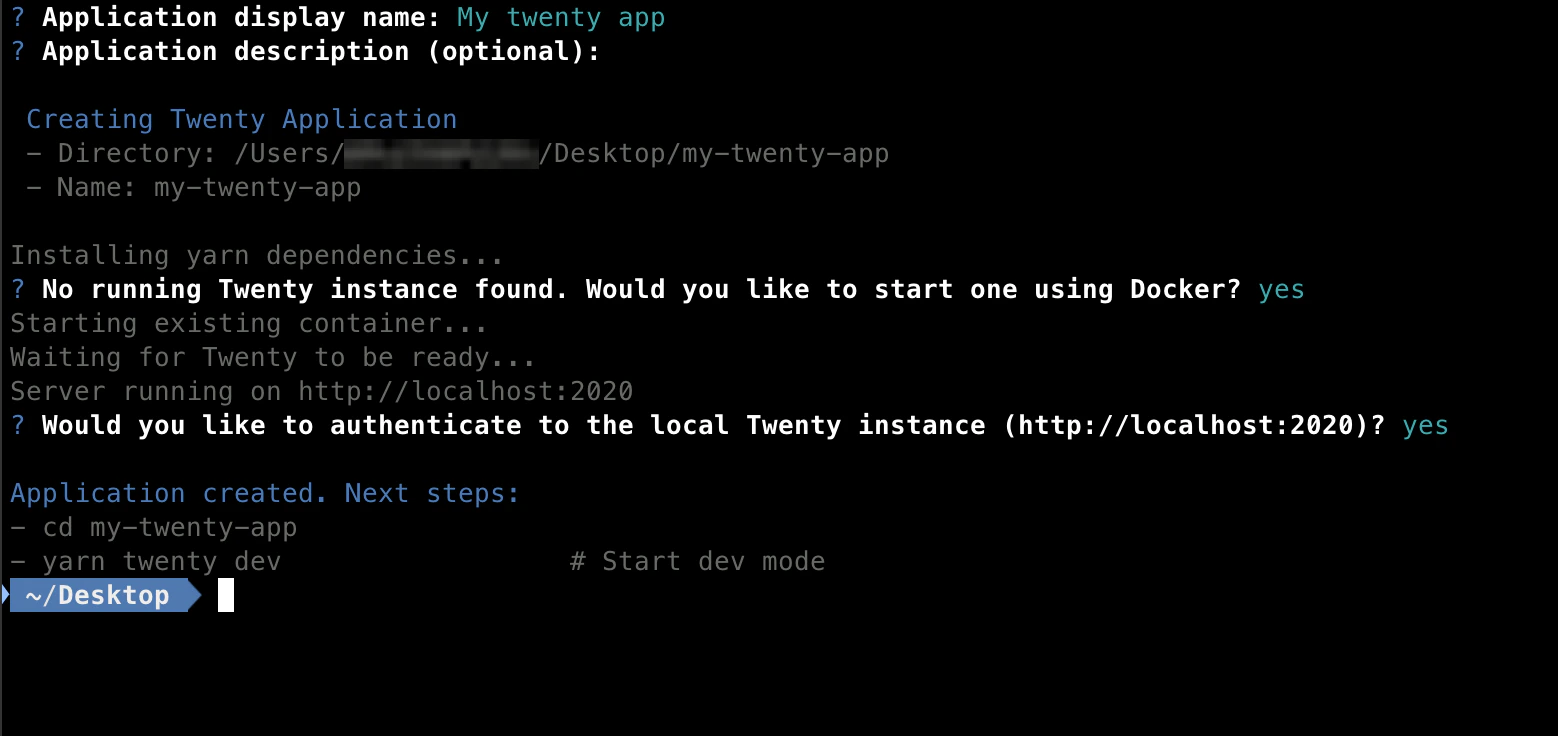
Once authorized, your terminal will confirm that everything is set up.
App scaffolded successfully

Step 5: Start developing

Go into your new app folder and start the development server:
cd my-twenty-app
yarn twenty dev
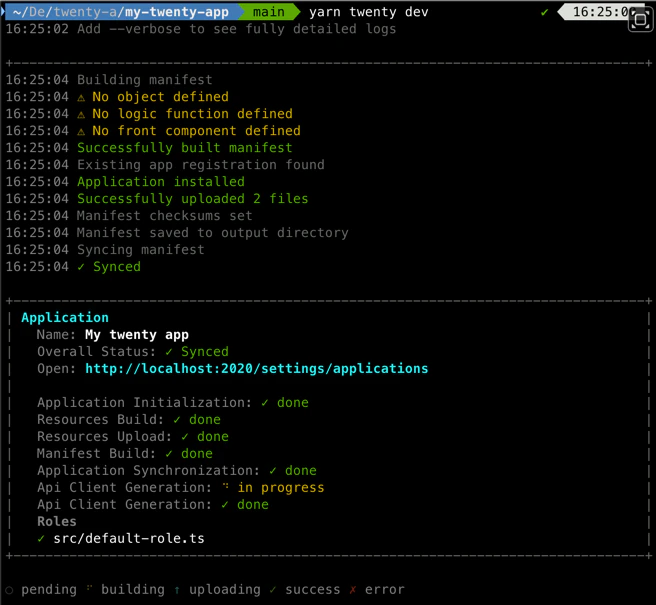
This watches your source files, rebuilds on every change, and syncs your app to the local Twenty server automatically. You should see a live status panel in your terminal. For more detailed output (build logs, sync requests, error traces), use the --verbose flag:
yarn twenty dev --verbose
Dev mode is only available on Twenty instances running in development (NODE_ENV=development). Production instances reject dev sync requests. Use yarn twenty deploy to deploy to production servers — see Publishing Apps for details.
Dev mode terminal output

Step 6: See your app in Twenty

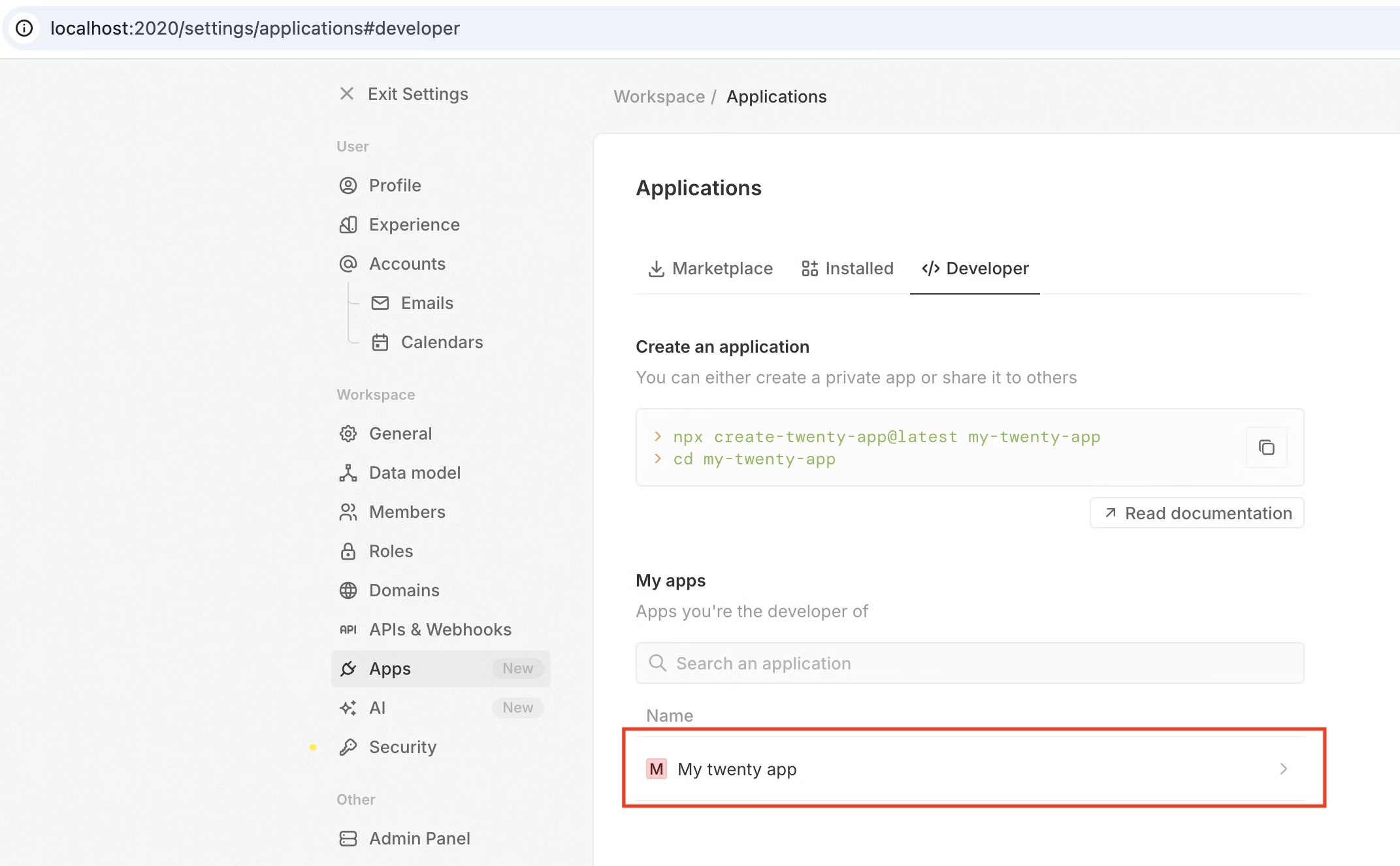
Open http://localhost:2020/settings/applications#developer in your browser. Navigate to Settings > Apps and select the Developer tab. You should see your app listed under Your Apps:
Your Apps list showing My twenty app
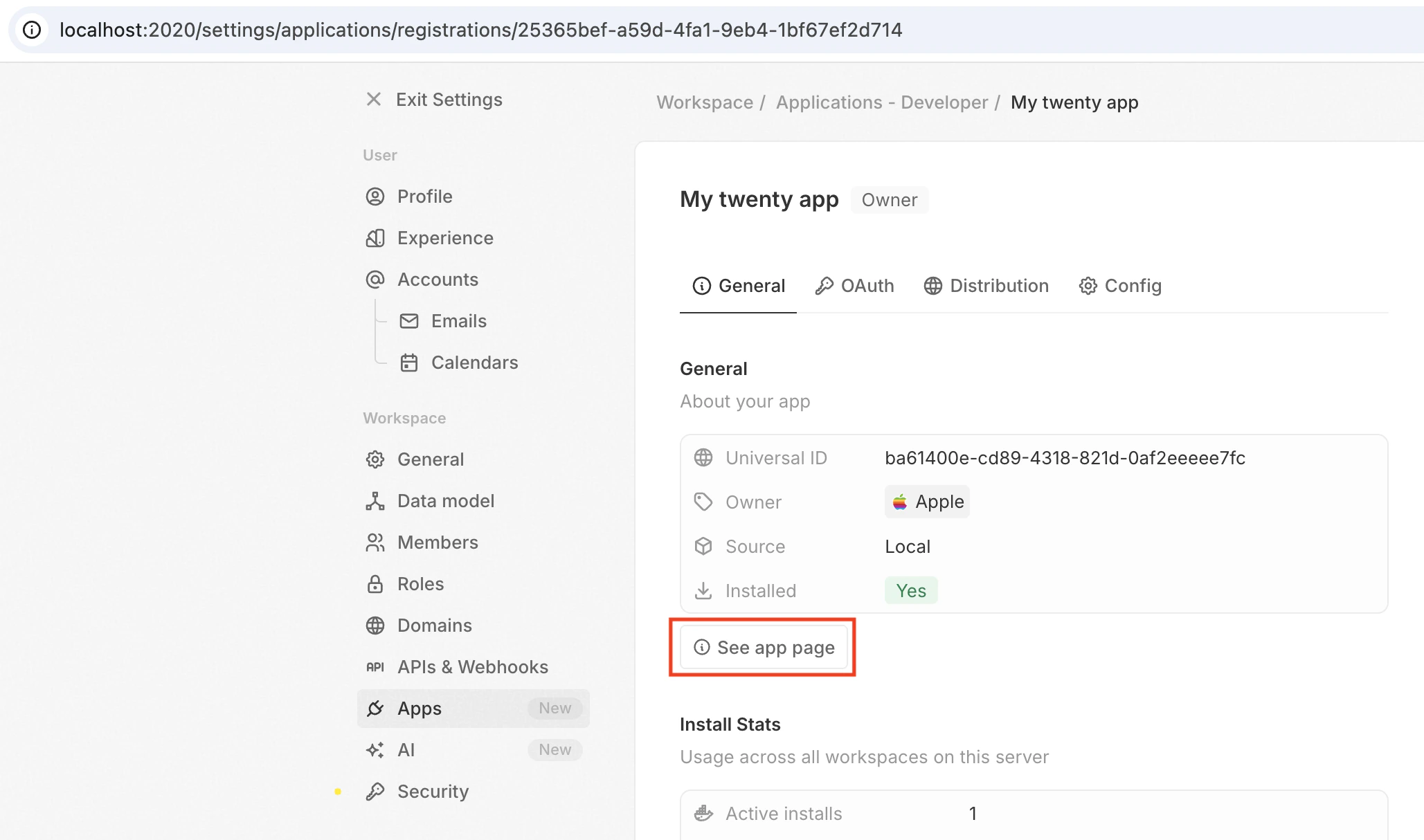
Click on My twenty app to open its application registration. A registration is a server-level record that describes your app — its name, unique identifier, OAuth credentials, and source (local, npm, or tarball). It lives on the server, not inside any specific workspace. When you install an app into a workspace, Twenty creates a workspace-scoped application that points back to this registration. One registration can be installed across multiple workspaces on the same server.
Application registration details
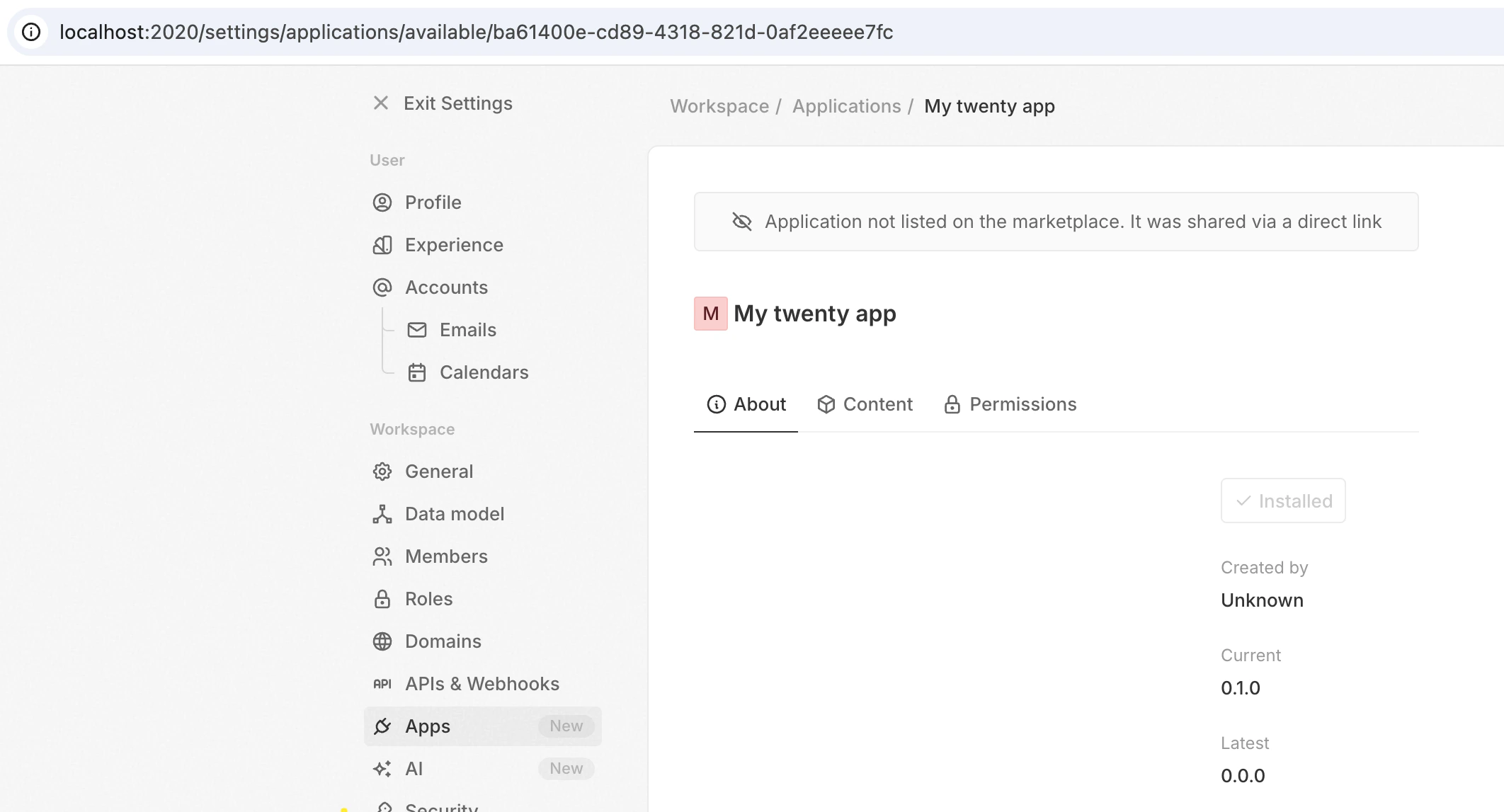
Click View installed app to see the installed app. The About tab shows the current version and management options:
Installed app — About tab
Switch to the Content tab to see everything your app provides — objects, fields, logic functions, and agents:
Installed app — Content tab
You are all set! Edit any file in src/ and the changes will be picked up automatically. Head over to Building Apps for a detailed guide on creating objects, logic functions, front components, skills, and more.

Project structure

The scaffolder generates the following file structure (shown with --exhaustive mode, which includes examples for every entity type):
my-twenty-app/
  package.json
  yarn.lock
  .gitignore
  .nvmrc
  .yarnrc.yml
  .yarn/
    install-state.gz
  .oxlintrc.json
  tsconfig.json
  tsconfig.spec.json                  # TypeScript config for tests
  vitest.config.ts                    # Vitest test runner configuration
  LLMS.md
  README.md
  .github/
    └── workflows/
        └── ci.yml                      # GitHub Actions CI workflow
  public/                             # Public assets (images, fonts, etc.)
  src/
  ├── application-config.ts             # Required — main application configuration
  ├── __tests__/
  │   ├── setup-test.ts                   # Test setup (server health check, config)
  │   └── app-install.integration-test.ts # Example integration test
  ├── roles/
  │   └── default-role.ts                 # Default role for logic functions
  ├── objects/
  │   └── example-object.ts               # Example custom object definition
  ├── fields/
  │   └── example-field.ts                # Example standalone field definition
  ├── logic-functions/
  │   ├── hello-world.ts                  # Example logic function
  │   ├── create-hello-world-company.ts   # Example logic function using CoreApiClient
  │   ├── pre-install.ts                  # Runs before installation
  │   └── post-install.ts                 # Runs after installation
  ├── front-components/
  │   └── hello-world.tsx                 # Example front component
  ├── page-layouts/
  │   └── example-record-page-layout.ts   # Example page layout with front component
  ├── views/
  │   └── example-view.ts                 # Example saved view definition
  ├── navigation-menu-items/
  │   └── example-navigation-menu-item.ts # Example sidebar navigation link
  ├── skills/
  │   └── example-skill.ts                # Example AI agent skill definition
  └── agents/
      └── example-agent.ts                # Example AI agent definition
By default (--minimal), only the core files are created: application-config.ts, roles/default-role.ts, logic-functions/pre-install.ts, and logic-functions/post-install.ts. Use --exhaustive to include all the example files shown above.

Key files

File / FolderPurpose
package.jsonDeclares your app name, version, and dependencies. Includes a twenty script so you can run yarn twenty help to see all commands.
src/application-config.tsRequired. The main configuration file for your app.
src/roles/Defines roles that control what your logic functions can access.
src/logic-functions/Server-side functions triggered by routes, cron schedules, or database events.
src/front-components/React components that render inside Twenty’s UI.
src/objects/Custom object definitions to extend your data model.
src/fields/Custom fields added to existing objects.
src/views/Saved view configurations.
src/navigation-menu-items/Custom links in the sidebar navigation.
src/skills/Skills that extend Twenty’s AI agents.
src/agents/AI agents with custom prompts.
src/page-layouts/Custom page layouts for record views.
src/__tests__/Integration tests (setup + example test).
public/Static assets (images, fonts) served with your app.

Managing remotes

A remote is a Twenty server that your app connects to. During setup, the scaffolder creates one for you automatically. You can add more remotes or switch between them at any time.
# Add a new remote (opens a browser for OAuth login)
yarn twenty remote add

# Connect to a local Twenty server (auto-detects port 2020 or 3000)
yarn twenty remote add --local

# Add a remote non-interactively (useful for CI)
yarn twenty remote add --api-url https://your-twenty-server.com --api-key $TWENTY_API_KEY --as my-remote

# List all configured remotes
yarn twenty remote list

# Switch the active remote
yarn twenty remote switch <name>
Your credentials are stored in ~/.twenty/config.json.

Local development server (yarn twenty server)

The CLI can manage a local Twenty server running in Docker. This is the same server started automatically when you scaffold an app with create-twenty-app, but you can also manage it manually.

Starting the server

yarn twenty server start
This pulls the twentycrm/twenty-app-dev:latest Docker image (if not already present), creates a container named twenty-app-dev, and starts it on port 2020. The CLI waits until the server passes its health check before returning. Two Docker volumes are created to persist data between restarts:
  • twenty-app-dev-data — PostgreSQL database
  • twenty-app-dev-storage — file storage
If port 2020 is already in use, you can start on a different port:
yarn twenty server start --port 3030
The CLI automatically configures the container’s internal NODE_PORT and SERVER_URL to match the chosen port, so logic functions, OAuth, and all other internal networking work correctly. Once started, the server is automatically registered as the local remote in your CLI config.

Checking server status

yarn twenty server status
Displays whether the server is running, its URL, and the default login credentials (tim@apple.dev / tim@apple.dev).

Viewing server logs

yarn twenty server logs
Streams the container logs. Use --lines to control how many recent lines to show:
yarn twenty server logs --lines 100

Stopping the server

yarn twenty server stop
Stops the container. Your data is preserved in the Docker volumes — the next start picks up where you left off.

Resetting the server

yarn twenty server reset
Removes the container and deletes both Docker volumes, wiping all data. The next start creates a fresh instance.
The server requires Docker to be running. If you see a “Docker not running” error, make sure Docker Desktop (or the Docker daemon) is started.

Command reference

CommandDescription
yarn twenty server startStart the local server (pulls image if needed)
yarn twenty server start --port 3030Start on a custom port
yarn twenty server stopStop the server (preserves data)
yarn twenty server statusShow server status, URL, and credentials
yarn twenty server logsStream server logs
yarn twenty server logs --lines 100Show the last 100 log lines
yarn twenty server resetDelete all data and start fresh

CI with GitHub Actions

The scaffolder generates a ready-to-use GitHub Actions workflow at .github/workflows/ci.yml. It runs your integration tests automatically on every push to main and on pull requests. The workflow:
  1. Checks out your code
  2. Spins up a temporary Twenty server using the twentyhq/twenty/.github/actions/spawn-twenty-docker-image action
  3. Installs dependencies with yarn install --immutable
  4. Runs yarn test with TWENTY_API_URL and TWENTY_API_KEY injected from the action outputs
.github/workflows/ci.yml
name: CI

on:
  push:
    branches:
      - main
  pull_request: {}

env:
  TWENTY_VERSION: latest

jobs:
  test:
    runs-on: ubuntu-latest
    steps:
      - name: Checkout
        uses: actions/checkout@v4

      - name: Spawn Twenty instance
        id: twenty
        uses: twentyhq/twenty/.github/actions/spawn-twenty-docker-image@main
        with:
          twenty-version: ${{ env.TWENTY_VERSION }}
          github-token: ${{ secrets.GITHUB_TOKEN }}

      - name: Enable Corepack
        run: corepack enable

      - name: Setup Node.js
        uses: actions/setup-node@v4
        with:
          node-version-file: '.nvmrc'
          cache: 'yarn'

      - name: Install dependencies
        run: yarn install --immutable

      - name: Run integration tests
        run: yarn test
        env:
          TWENTY_API_URL: ${{ steps.twenty.outputs.server-url }}
          TWENTY_API_KEY: ${{ steps.twenty.outputs.access-token }}
You don’t need to configure any secrets — the spawn-twenty-docker-image action starts an ephemeral Twenty server directly in the runner and outputs the connection details. The GITHUB_TOKEN secret is provided automatically by GitHub. To pin a specific Twenty version instead of latest, change the TWENTY_VERSION environment variable at the top of the workflow.

Manual setup (without the scaffolder)

If you prefer to set things up yourself instead of using create-twenty-app, you can do it in two steps. 1. Add twenty-sdk and twenty-client-sdk as dependencies:
yarn add twenty-sdk twenty-client-sdk
2. Add a twenty script to your package.json:
{
  "scripts": {
    "twenty": "twenty"
  }
}
You can now run yarn twenty dev, yarn twenty help, and all other commands.
Do not install twenty-sdk globally. Always use it as a local project dependency so that each project can pin its own version.

Troubleshooting

If you run into issues:
  • Make sure Docker is running before starting the scaffolder with a local instance.
  • Make sure you are using Node.js 24+ (node -v to check).
  • Make sure Corepack is enabled (corepack enable) so Yarn 4 is available.
  • Try deleting node_modules and running yarn install again if dependencies seem broken.
Still stuck? Ask for help on the Twenty Discord.