Apps are currently in alpha. The feature works but is still evolving.
The twenty-sdk package provides typed building blocks to create your app. This page covers every entity type and API client available in the SDK.

DefineEntity functions

The SDK provides functions to define your app entities. You must use export default defineEntity({...}) for the SDK to detect your entities. These functions validate your configuration at build time and provide IDE autocompletion and type safety.
File organization is up to you. Entity detection is AST-based — the SDK finds export default defineEntity(...) calls regardless of where the file lives. Grouping files by type (e.g., logic-functions/, roles/) is just a convention, not a requirement.
Roles encapsulate permissions on your workspace’s objects and actions.
restricted-company-role.ts
import {
  defineRole,
  PermissionFlag,
  STANDARD_OBJECT_UNIVERSAL_IDENTIFIERS,
} from 'twenty-sdk';

export default defineRole({
  universalIdentifier: '2c80f640-2083-4803-bb49-003e38279de6',
  label: 'My new role',
  description: 'A role that can be used in your workspace',
  canReadAllObjectRecords: false,
  canUpdateAllObjectRecords: false,
  canSoftDeleteAllObjectRecords: false,
  canDestroyAllObjectRecords: false,
  canUpdateAllSettings: false,
  canBeAssignedToAgents: false,
  canBeAssignedToUsers: false,
  canBeAssignedToApiKeys: false,
  objectPermissions: [
    {
      objectUniversalIdentifier:
        STANDARD_OBJECT_UNIVERSAL_IDENTIFIERS.company.universalIdentifier,
      canReadObjectRecords: true,
      canUpdateObjectRecords: true,
      canSoftDeleteObjectRecords: false,
      canDestroyObjectRecords: false,
    },
  ],
  fieldPermissions: [
    {
      objectUniversalIdentifier:
        STANDARD_OBJECT_UNIVERSAL_IDENTIFIERS.company.universalIdentifier,
      fieldUniversalIdentifier:
        STANDARD_OBJECT_UNIVERSAL_IDENTIFIERS.company.fields.name.universalIdentifier,
      canReadFieldValue: false,
      canUpdateFieldValue: false,
    },
  ],
  permissionFlags: [PermissionFlag.APPLICATIONS],
});
Every app must have exactly one defineApplication call that describes:
  • Identity: identifiers, display name, and description.
  • Permissions: which role its functions and front components use.
  • (Optional) Variables: key–value pairs exposed to your functions as environment variables.
  • (Optional) Pre-install / post-install functions: logic functions that run before or after installation.
src/application-config.ts
import { defineApplication } from 'twenty-sdk';
import { DEFAULT_ROLE_UNIVERSAL_IDENTIFIER } from 'src/roles/default-role';

export default defineApplication({
  universalIdentifier: '4ec0391d-18d5-411c-b2f3-266ddc1c3ef7',
  displayName: 'My Twenty App',
  description: 'My first Twenty app',
  icon: 'IconWorld',
  applicationVariables: {
    DEFAULT_RECIPIENT_NAME: {
      universalIdentifier: '19e94e59-d4fe-4251-8981-b96d0a9f74de',
      description: 'Default recipient name for postcards',
      value: 'Jane Doe',
      isSecret: false,
    },
  },
  defaultRoleUniversalIdentifier: DEFAULT_ROLE_UNIVERSAL_IDENTIFIER,
});
Notes:
  • universalIdentifier fields are deterministic IDs you own. Generate them once and keep them stable across syncs.
  • applicationVariables become environment variables for your functions and front components (e.g., DEFAULT_RECIPIENT_NAME is available as process.env.DEFAULT_RECIPIENT_NAME).
  • defaultRoleUniversalIdentifier must reference a role defined with defineRole() (see above).
  • Pre-install and post-install functions are detected automatically during the manifest build — you do not need to reference them in defineApplication().

Marketplace metadata

If you plan to publish your app, these optional fields control how it appears in the marketplace:
FieldDescription
authorAuthor or company name
categoryApp category for marketplace filtering
logoUrlPath to your app logo (e.g., public/logo.png)
screenshotsArray of screenshot paths (e.g., public/screenshot-1.png)
aboutDescriptionLonger markdown description for the “About” tab. If omitted, the marketplace uses the package’s README.md from npm
websiteUrlLink to your website
termsUrlLink to terms of service
emailSupportSupport email address
issueReportUrlLink to issue tracker

Roles and permissions

The defaultRoleUniversalIdentifier in application-config.ts designates the default role used by your app’s logic functions and front components. See defineRole above for details.
  • The runtime token injected as TWENTY_APP_ACCESS_TOKEN is derived from this role.
  • The typed client is restricted to the permissions granted to that role.
  • Follow least-privilege: create a dedicated role with only the permissions your functions need.
Default function role
When you scaffold a new app, the CLI creates a default role file:
src/roles/default-role.ts
import { defineRole, PermissionFlag } from 'twenty-sdk';

export const DEFAULT_ROLE_UNIVERSAL_IDENTIFIER =
  'b648f87b-1d26-4961-b974-0908fd991061';

export default defineRole({
  universalIdentifier: DEFAULT_ROLE_UNIVERSAL_IDENTIFIER,
  label: 'Default function role',
  description: 'Default role for function Twenty client',
  canReadAllObjectRecords: true,
  canUpdateAllObjectRecords: false,
  canSoftDeleteAllObjectRecords: false,
  canDestroyAllObjectRecords: false,
  canUpdateAllSettings: false,
  canBeAssignedToAgents: false,
  canBeAssignedToUsers: false,
  canBeAssignedToApiKeys: false,
  objectPermissions: [],
  fieldPermissions: [],
  permissionFlags: [],
});
This role’s universalIdentifier is referenced in application-config.ts as defaultRoleUniversalIdentifier:
  • *.role.ts defines what the role can do.
  • application-config.ts points to that role so your functions inherit its permissions.
Notes:
  • Start from the scaffolded role, then progressively restrict it following least-privilege.
  • Replace objectPermissions and fieldPermissions with the objects and fields your functions actually need.
  • permissionFlags control access to platform-level capabilities. Keep them minimal.
  • See a working example: hello-world/src/roles/function-role.ts.
Custom objects describe both schema and behavior for records in your workspace. Use defineObject() to define objects with built-in validation:
postCard.object.ts
import { defineObject, FieldType } from 'twenty-sdk';

enum PostCardStatus {
  DRAFT = 'DRAFT',
  SENT = 'SENT',
  DELIVERED = 'DELIVERED',
  RETURNED = 'RETURNED',
}

export default defineObject({
  universalIdentifier: '54b589ca-eeed-4950-a176-358418b85c05',
  nameSingular: 'postCard',
  namePlural: 'postCards',
  labelSingular: 'Post Card',
  labelPlural: 'Post Cards',
  description: 'A post card object',
  icon: 'IconMail',
  fields: [
    {
      universalIdentifier: '58a0a314-d7ea-4865-9850-7fb84e72f30b',
      name: 'content',
      type: FieldType.TEXT,
      label: 'Content',
      description: "Postcard's content",
      icon: 'IconAbc',
    },
    {
      universalIdentifier: 'c6aa31f3-da76-4ac6-889f-475e226009ac',
      name: 'recipientName',
      type: FieldType.FULL_NAME,
      label: 'Recipient name',
      icon: 'IconUser',
    },
    {
      universalIdentifier: '95045777-a0ad-49ec-98f9-22f9fc0c8266',
      name: 'recipientAddress',
      type: FieldType.ADDRESS,
      label: 'Recipient address',
      icon: 'IconHome',
    },
    {
      universalIdentifier: '87b675b8-dd8c-4448-b4ca-20e5a2234a1e',
      name: 'status',
      type: FieldType.SELECT,
      label: 'Status',
      icon: 'IconSend',
      defaultValue: `'${PostCardStatus.DRAFT}'`,
      options: [
        { value: PostCardStatus.DRAFT, label: 'Draft', position: 0, color: 'gray' },
        { value: PostCardStatus.SENT, label: 'Sent', position: 1, color: 'orange' },
        { value: PostCardStatus.DELIVERED, label: 'Delivered', position: 2, color: 'green' },
        { value: PostCardStatus.RETURNED, label: 'Returned', position: 3, color: 'orange' },
      ],
    },
    {
      universalIdentifier: 'e06abe72-5b44-4e7f-93be-afc185a3c433',
      name: 'deliveredAt',
      type: FieldType.DATE_TIME,
      label: 'Delivered at',
      icon: 'IconCheck',
      isNullable: true,
      defaultValue: null,
    },
  ],
});
Key points:
  • Use defineObject() for built-in validation and better IDE support.
  • The universalIdentifier must be unique and stable across deployments.
  • Each field requires a name, type, label, and its own stable universalIdentifier.
  • The fields array is optional — you can define objects without custom fields.
  • You can scaffold new objects using yarn twenty add, which guides you through naming, fields, and relationships.
Base fields are created automatically. When you define a custom object, Twenty automatically adds standard fields such as id, name, createdAt, updatedAt, createdBy, updatedBy and deletedAt. You don’t need to define these in your fields array — only add your custom fields. You can override default fields by defining a field with the same name in your fields array, but this is not recommended.
Use defineField() to add fields to objects you don’t own — such as standard Twenty objects (Person, Company, etc.) or objects from other apps. Unlike inline fields in defineObject(), standalone fields require an objectUniversalIdentifier to specify which object they extend:
src/fields/company-loyalty-tier.field.ts
import { defineField, FieldType } from 'twenty-sdk';

export default defineField({
  universalIdentifier: 'f2a1b3c4-d5e6-7890-abcd-ef1234567890',
  objectUniversalIdentifier: '701aecb9-eb1c-4d84-9d94-b954b231b64b', // Company object
  name: 'loyaltyTier',
  type: FieldType.SELECT,
  label: 'Loyalty Tier',
  icon: 'IconStar',
  options: [
    { value: 'BRONZE', label: 'Bronze', position: 0, color: 'orange' },
    { value: 'SILVER', label: 'Silver', position: 1, color: 'gray' },
    { value: 'GOLD', label: 'Gold', position: 2, color: 'yellow' },
  ],
});
Key points:
  • objectUniversalIdentifier identifies the target object. For standard objects, use STANDARD_OBJECT_UNIVERSAL_IDENTIFIERS exported from twenty-sdk.
  • When defining fields inline in defineObject(), you do not need objectUniversalIdentifier — it’s inherited from the parent object.
  • defineField() is the only way to add fields to objects you didn’t create with defineObject().
Relations connect objects together. In Twenty, relations are always bidirectional — you define both sides, and each side references the other.There are two relation types:
Relation typeDescriptionHas foreign key?
MANY_TO_ONEMany records of this object point to one record of the targetYes (joinColumnName)
ONE_TO_MANYOne record of this object has many records of the targetNo (inverse side)

How relations work

Every relation requires two fields that reference each other:
  1. The MANY_TO_ONE side — lives on the object that holds the foreign key
  2. The ONE_TO_MANY side — lives on the object that owns the collection
Both fields use FieldType.RELATION and cross-reference each other via relationTargetFieldMetadataUniversalIdentifier.

Example: Post Card has many Recipients

Suppose a PostCard can be sent to many PostCardRecipient records. Each recipient belongs to exactly one post card.Step 1: Define the ONE_TO_MANY side on PostCard (the “one” side):
src/fields/post-card-recipients-on-post-card.field.ts
import { defineField, FieldType, RelationType } from 'twenty-sdk';
import { POST_CARD_UNIVERSAL_IDENTIFIER } from '../objects/post-card.object';
import { POST_CARD_RECIPIENT_UNIVERSAL_IDENTIFIER } from '../objects/post-card-recipient.object';

// Export so the other side can reference it
export const POST_CARD_RECIPIENTS_FIELD_ID = 'a1111111-1111-1111-1111-111111111111';
// Import from the other side
import { POST_CARD_FIELD_ID } from './post-card-on-post-card-recipient.field';

export default defineField({
  universalIdentifier: POST_CARD_RECIPIENTS_FIELD_ID,
  objectUniversalIdentifier: POST_CARD_UNIVERSAL_IDENTIFIER,
  type: FieldType.RELATION,
  name: 'postCardRecipients',
  label: 'Post Card Recipients',
  icon: 'IconUsers',
  relationTargetObjectMetadataUniversalIdentifier: POST_CARD_RECIPIENT_UNIVERSAL_IDENTIFIER,
  relationTargetFieldMetadataUniversalIdentifier: POST_CARD_FIELD_ID,
  universalSettings: {
    relationType: RelationType.ONE_TO_MANY,
  },
});
Step 2: Define the MANY_TO_ONE side on PostCardRecipient (the “many” side — holds the foreign key):
src/fields/post-card-on-post-card-recipient.field.ts
import { defineField, FieldType, RelationType, OnDeleteAction } from 'twenty-sdk';
import { POST_CARD_UNIVERSAL_IDENTIFIER } from '../objects/post-card.object';
import { POST_CARD_RECIPIENT_UNIVERSAL_IDENTIFIER } from '../objects/post-card-recipient.object';

// Export so the other side can reference it
export const POST_CARD_FIELD_ID = 'b2222222-2222-2222-2222-222222222222';
// Import from the other side
import { POST_CARD_RECIPIENTS_FIELD_ID } from './post-card-recipients-on-post-card.field';

export default defineField({
  universalIdentifier: POST_CARD_FIELD_ID,
  objectUniversalIdentifier: POST_CARD_RECIPIENT_UNIVERSAL_IDENTIFIER,
  type: FieldType.RELATION,
  name: 'postCard',
  label: 'Post Card',
  icon: 'IconMail',
  relationTargetObjectMetadataUniversalIdentifier: POST_CARD_UNIVERSAL_IDENTIFIER,
  relationTargetFieldMetadataUniversalIdentifier: POST_CARD_RECIPIENTS_FIELD_ID,
  universalSettings: {
    relationType: RelationType.MANY_TO_ONE,
    onDelete: OnDeleteAction.CASCADE,
    joinColumnName: 'postCardId',
  },
});
Circular imports: Both relation fields reference each other’s universalIdentifier. To avoid circular import issues, export your field IDs as named constants from each file, and import them in the other file. The build system resolves these at compile time.

Relating to standard objects

To create a relation with a built-in Twenty object (Person, Company, etc.), use STANDARD_OBJECT_UNIVERSAL_IDENTIFIERS:
src/fields/person-on-self-hosting-user.field.ts
import {
  defineField,
  FieldType,
  RelationType,
  OnDeleteAction,
  STANDARD_OBJECT_UNIVERSAL_IDENTIFIERS,
} from 'twenty-sdk';
import { SELF_HOSTING_USER_UNIVERSAL_IDENTIFIER } from '../objects/self-hosting-user.object';

export const PERSON_FIELD_ID = 'c3333333-3333-3333-3333-333333333333';
export const SELF_HOSTING_USER_REVERSE_FIELD_ID = 'd4444444-4444-4444-4444-444444444444';

export default defineField({
  universalIdentifier: PERSON_FIELD_ID,
  objectUniversalIdentifier: SELF_HOSTING_USER_UNIVERSAL_IDENTIFIER,
  type: FieldType.RELATION,
  name: 'person',
  label: 'Person',
  description: 'Person matching with the self hosting user',
  isNullable: true,
  relationTargetObjectMetadataUniversalIdentifier:
    STANDARD_OBJECT_UNIVERSAL_IDENTIFIERS.person.universalIdentifier,
  relationTargetFieldMetadataUniversalIdentifier: SELF_HOSTING_USER_REVERSE_FIELD_ID,
  universalSettings: {
    relationType: RelationType.MANY_TO_ONE,
    onDelete: OnDeleteAction.SET_NULL,
    joinColumnName: 'personId',
  },
});

Relation field properties

PropertyRequiredDescription
typeYesMust be FieldType.RELATION
relationTargetObjectMetadataUniversalIdentifierYesThe universalIdentifier of the target object
relationTargetFieldMetadataUniversalIdentifierYesThe universalIdentifier of the matching field on the target object
universalSettings.relationTypeYesRelationType.MANY_TO_ONE or RelationType.ONE_TO_MANY
universalSettings.onDeleteMANY_TO_ONE onlyWhat happens when the referenced record is deleted: CASCADE, SET_NULL, RESTRICT, or NO_ACTION
universalSettings.joinColumnNameMANY_TO_ONE onlyDatabase column name for the foreign key (e.g., postCardId)

Inline relation fields in defineObject

You can also define relation fields directly inside defineObject(). In that case, omit objectUniversalIdentifier — it’s inherited from the parent object:
export default defineObject({
  universalIdentifier: '...',
  nameSingular: 'postCardRecipient',
  // ...
  fields: [
    {
      universalIdentifier: POST_CARD_FIELD_ID,
      type: FieldType.RELATION,
      name: 'postCard',
      label: 'Post Card',
      relationTargetObjectMetadataUniversalIdentifier: POST_CARD_UNIVERSAL_IDENTIFIER,
      relationTargetFieldMetadataUniversalIdentifier: POST_CARD_RECIPIENTS_FIELD_ID,
      universalSettings: {
        relationType: RelationType.MANY_TO_ONE,
        onDelete: OnDeleteAction.CASCADE,
        joinColumnName: 'postCardId',
      },
    },
    // ... other fields
  ],
});
Each function file uses defineLogicFunction() to export a configuration with a handler and optional triggers.
src/logic-functions/createPostCard.logic-function.ts
import { defineLogicFunction } from 'twenty-sdk';
import type { DatabaseEventPayload, ObjectRecordCreateEvent, CronPayload, RoutePayload } from 'twenty-sdk';
import { CoreApiClient, type Person } from 'twenty-client-sdk/core';

const handler = async (params: RoutePayload) => {
  const client = new CoreApiClient();
  const name = 'name' in params.queryStringParameters
    ? params.queryStringParameters.name ?? process.env.DEFAULT_RECIPIENT_NAME ?? 'Hello world'
    : 'Hello world';

  const result = await client.mutation({
    createPostCard: {
      __args: { data: { name } },
      id: true,
      name: true,
    },
  });
  return result;
};

export default defineLogicFunction({
  universalIdentifier: 'e56d363b-0bdc-4d8a-a393-6f0d1c75bdcf',
  name: 'create-new-post-card',
  timeoutSeconds: 2,
  handler,
  httpRouteTriggerSettings: {
    path: '/post-card/create',
    httpMethod: 'GET',
    isAuthRequired: false,
  },
  /*databaseEventTriggerSettings: {
    eventName: 'people.created',
  },*/
  /*cronTriggerSettings: {
    pattern: '0 0 1 1 *',
  },*/
});
Available trigger types:
  • httpRoute: Exposes your function on an HTTP path and method under the /s/ endpoint:
e.g. path: '/post-card/create' is callable at https://your-twenty-server.com/s/post-card/create
  • cron: Runs your function on a schedule using a CRON expression.
  • databaseEvent: Runs on workspace object lifecycle events. When the event operation is updated, specific fields to listen to can be specified in the updatedFields array. If left undefined or empty, any update will trigger the function.
e.g. person.updated, *.created, company.*
You can also manually execute a function using the CLI:
yarn twenty exec -n create-new-post-card -p '{"key": "value"}'
yarn twenty exec -y e56d363b-0bdc-4d8a-a393-6f0d1c75bdcf
You can watch logs with:
yarn twenty logs

Route trigger payload

When a route trigger invokes your logic function, it receives a RoutePayload object that follows the AWS HTTP API v2 format. Import the RoutePayload type from twenty-sdk:
import { defineLogicFunction, type RoutePayload } from 'twenty-sdk';

const handler = async (event: RoutePayload) => {
  const { headers, queryStringParameters, pathParameters, body } = event;
  const { method, path } = event.requestContext.http;

  return { message: 'Success' };
};
The RoutePayload type has the following structure:
PropertyTypeDescriptionExample
headersRecord<string, string | undefined>HTTP headers (only those listed in forwardedRequestHeaders)see section below
queryStringParametersRecord<string, string | undefined>Query string parameters (multiple values joined with commas)/users?ids=1&ids=2&ids=3&name=Alice -> { ids: '1,2,3', name: 'Alice' }
pathParametersRecord<string, string | undefined>Path parameters extracted from the route pattern/users/:id, /users/123 -> { id: '123' }
bodyobject | nullParsed request body (JSON){ id: 1 } -> { id: 1 }
isBase64EncodedbooleanWhether the body is base64 encoded
requestContext.http.methodstringHTTP method (GET, POST, PUT, PATCH, DELETE)
requestContext.http.pathstringRaw request path

forwardedRequestHeaders

By default, HTTP headers from incoming requests are not passed to your logic function for security reasons. To access specific headers, list them in the forwardedRequestHeaders array:
export default defineLogicFunction({
  universalIdentifier: 'e56d363b-0bdc-4d8a-a393-6f0d1c75bdcf',
  name: 'webhook-handler',
  handler,
  httpRouteTriggerSettings: {
    path: '/webhook',
    httpMethod: 'POST',
    isAuthRequired: false,
    forwardedRequestHeaders: ['x-webhook-signature', 'content-type'],
  },
});
In your handler, access the forwarded headers like this:
const handler = async (event: RoutePayload) => {
  const signature = event.headers['x-webhook-signature'];
  const contentType = event.headers['content-type'];

  // Validate webhook signature...
  return { received: true };
};
Header names are normalized to lowercase. Access them using lowercase keys (e.g., event.headers['content-type']).

Exposing a function as a tool

Logic functions can be exposed as tools for AI agents and workflows. When marked as a tool, a function becomes discoverable by Twenty’s AI features and can be used in workflow automations.To mark a logic function as a tool, set isTool: true:
src/logic-functions/enrich-company.logic-function.ts
import { defineLogicFunction } from 'twenty-sdk';
import { CoreApiClient } from 'twenty-client-sdk/core';

const handler = async (params: { companyName: string; domain?: string }) => {
  const client = new CoreApiClient();

  const result = await client.mutation({
    createTask: {
      __args: {
        data: {
          title: `Enrich data for ${params.companyName}`,
          body: `Domain: ${params.domain ?? 'unknown'}`,
        },
      },
      id: true,
    },
  });

  return { taskId: result.createTask.id };
};

export default defineLogicFunction({
  universalIdentifier: 'f47ac10b-58cc-4372-a567-0e02b2c3d479',
  name: 'enrich-company',
  description: 'Enrich a company record with external data',
  timeoutSeconds: 10,
  handler,
  isTool: true,
});
Key points:
  • You can combine isTool with triggers — a function can be both a tool (callable by AI agents) and triggered by events at the same time.
  • toolInputSchema (optional): A JSON Schema object describing the parameters your function accepts. The schema is computed automatically from source code static analysis, but you can set it explicitly:
export default defineLogicFunction({
  ...,
  toolInputSchema: {
    type: 'object',
    properties: {
      companyName: {
        type: 'string',
        description: 'The name of the company to enrich',
      },
      domain: {
        type: 'string',
        description: 'The company website domain (optional)',
      },
    },
    required: ['companyName'],
  },
});
Write a good description. AI agents rely on the function’s description field to decide when to use the tool. Be specific about what the tool does and when it should be called.
A pre-install function is a logic function that runs automatically before your app is installed on a workspace. This is useful for validation tasks, prerequisite checks, or preparing workspace state before the main installation proceeds.
src/logic-functions/pre-install.ts
import { definePreInstallLogicFunction, type InstallLogicFunctionPayload } from 'twenty-sdk';

const handler = async (payload: InstallLogicFunctionPayload): Promise<void> => {
  console.log('Pre install logic function executed successfully!', payload.previousVersion);
};

export default definePreInstallLogicFunction({
  universalIdentifier: 'e0604b9e-e946-456b-886d-3f27d9a6b324',
  name: 'pre-install',
  description: 'Runs before installation to prepare the application.',
  timeoutSeconds: 300,
  handler,
});
You can also manually execute the pre-install function at any time using the CLI:
yarn twenty exec --preInstall
Key points:
  • Pre-install functions use definePreInstallLogicFunction() — a specialized variant that omits trigger settings (cronTriggerSettings, databaseEventTriggerSettings, httpRouteTriggerSettings, isTool).
  • The handler receives an InstallLogicFunctionPayload with { previousVersion: string } — the version of the app that was previously installed (or an empty string for fresh installs).
  • Only one pre-install function is allowed per application. The manifest build will error if more than one is detected.
  • The function’s universalIdentifier is automatically set as preInstallLogicFunctionUniversalIdentifier on the application manifest during the build — you do not need to reference it in defineApplication().
  • The default timeout is set to 300 seconds (5 minutes) to allow for longer preparation tasks.
A post-install function is a logic function that runs automatically after your app is installed on a workspace. This is useful for one-time setup tasks such as seeding default data, creating initial records, or configuring workspace settings.
src/logic-functions/post-install.ts
import { definePostInstallLogicFunction, type InstallLogicFunctionPayload } from 'twenty-sdk';

const handler = async (payload: InstallLogicFunctionPayload): Promise<void> => {
  console.log('Post install logic function executed successfully!', payload.previousVersion);
};

export default definePostInstallLogicFunction({
  universalIdentifier: 'f7a2b9c1-3d4e-5678-abcd-ef9876543210',
  name: 'post-install',
  description: 'Runs after installation to set up the application.',
  timeoutSeconds: 300,
  handler,
});
You can also manually execute the post-install function at any time using the CLI:
yarn twenty exec --postInstall
Key points:
  • Post-install functions use definePostInstallLogicFunction() — a specialized variant that omits trigger settings (cronTriggerSettings, databaseEventTriggerSettings, httpRouteTriggerSettings, isTool).
  • The handler receives an InstallLogicFunctionPayload with { previousVersion: string } — the version of the app that was previously installed (or an empty string for fresh installs).
  • Only one post-install function is allowed per application. The manifest build will error if more than one is detected.
  • The function’s universalIdentifier is automatically set as postInstallLogicFunctionUniversalIdentifier on the application manifest during the build — you do not need to reference it in defineApplication().
  • The default timeout is set to 300 seconds (5 minutes) to allow for longer setup tasks like data seeding.
Front components are React components that render directly inside Twenty’s UI. They run in an isolated Web Worker using Remote DOM — your code is sandboxed but renders natively in the page, not in an iframe.

Basic example

The quickest way to see a front component in action is to register it as a command. Adding a command field with isPinned: true makes it appear as a quick-action button in the top-right corner of the page — no page layout needed:
src/front-components/hello-world.tsx
import { defineFrontComponent } from 'twenty-sdk';

const HelloWorld = () => {
  return (
    <div style={{ padding: '20px', fontFamily: 'sans-serif' }}>
      <h1>Hello from my app!</h1>
      <p>This component renders inside Twenty.</p>
    </div>
  );
};

export default defineFrontComponent({
  universalIdentifier: '74c526eb-cb68-4cf7-b05c-0dd8c288d948',
  name: 'hello-world',
  description: 'A simple front component',
  component: HelloWorld,
  command: {
    universalIdentifier: 'd4e5f6a7-b8c9-0123-defa-456789012345',
    shortLabel: 'Hello',
    label: 'Hello World',
    icon: 'IconBolt',
    isPinned: true,
    availabilityType: 'GLOBAL',
  },
});
After syncing with yarn twenty dev, the quick action appears in the top-right corner of the page:
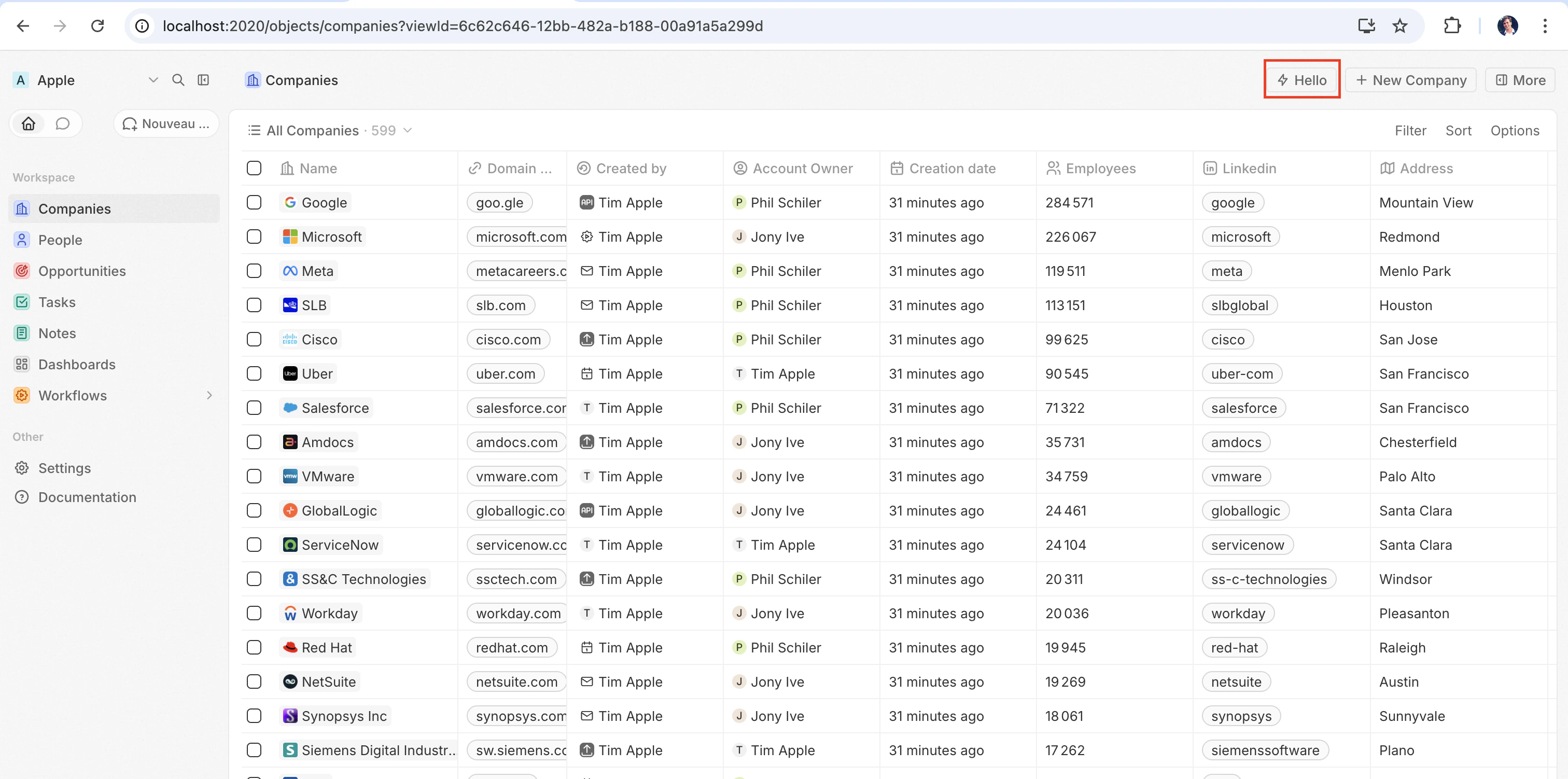
Quick action button in the top-right corner
Click it to render the component inline.

Configuration fields

FieldRequiredDescription
universalIdentifierYesStable unique ID for this component
componentYesA React component function
nameNoDisplay name
descriptionNoDescription of what the component does
isHeadlessNoSet to true if the component has no visible UI (see below)
commandNoRegister the component as a command (see command options below)

Placing a front component on a page

Beyond commands, you can embed a front component directly into a record page by adding it as a widget in a page layout. See the definePageLayout section for details.

Headless components (isHeadless: true)

Headless components render no visible UI but still run React logic. This is useful for effect components — components that perform side effects when mounted, such as syncing data, starting a timer, listening to events, or triggering a notification.
src/front-components/sync-tracker.tsx
import { defineFrontComponent, useRecordId, enqueueSnackbar } from 'twenty-sdk';
import { useEffect } from 'react';

const SyncTracker = () => {
  const recordId = useRecordId();

  useEffect(() => {
    enqueueSnackbar({ message: `Tracking record ${recordId}`, variant: 'info' });
  }, [recordId]);

  return null;
};

export default defineFrontComponent({
  universalIdentifier: '...',
  name: 'sync-tracker',
  description: 'Tracks record views silently',
  isHeadless: true,
  component: SyncTracker,
});
Because the component returns null, Twenty skips rendering a container for it — no empty space appears in the layout. The component still has access to all hooks and the host communication API.

Accessing runtime context

Inside your component, use SDK hooks to access the current user, record, and component instance:
src/front-components/record-info.tsx
import {
  defineFrontComponent,
  useUserId,
  useRecordId,
  useFrontComponentId,
} from 'twenty-sdk';

const RecordInfo = () => {
  const userId = useUserId();
  const recordId = useRecordId();
  const componentId = useFrontComponentId();

  return (
    <div>
      <p>User: {userId}</p>
      <p>Record: {recordId ?? 'No record context'}</p>
      <p>Component: {componentId}</p>
    </div>
  );
};

export default defineFrontComponent({
  universalIdentifier: 'b2c3d4e5-f6a7-8901-bcde-f23456789012',
  name: 'record-info',
  component: RecordInfo,
});
Available hooks:
HookReturnsDescription
useUserId()string or nullThe current user’s ID
useRecordId()string or nullThe current record’s ID (when placed on a record page)
useFrontComponentId()stringThis component instance’s ID
useFrontComponentExecutionContext(selector)variesAccess the full execution context with a selector function

Host communication API

Front components can trigger navigation, modals, and notifications using functions from twenty-sdk:
FunctionDescription
navigate(to, params?, queryParams?, options?)Navigate to a page in the app
openSidePanelPage(params)Open a side panel
closeSidePanel()Close the side panel
openCommandConfirmationModal(params)Show a confirmation dialog
enqueueSnackbar(params)Show a toast notification
unmountFrontComponent()Unmount the component
updateProgress(progress)Update a progress indicator

Command options

Adding a command field to defineFrontComponent registers the component in the command menu (Cmd+K). If isPinned is true, it also appears as a quick-action button in the top-right corner of the page.
FieldRequiredDescription
universalIdentifierYesStable unique ID for the command
labelYesFull label shown in the command menu (Cmd+K)
shortLabelNoShorter label displayed on the pinned quick-action button
iconNoIcon name displayed next to the label (e.g. 'IconBolt', 'IconSend')
isPinnedNoWhen true, shows the command as a quick-action button in the top-right corner of the page
availabilityTypeNoControls where the command appears: 'GLOBAL' (always available), 'RECORD_SELECTION' (only when records are selected), or 'FALLBACK' (shown when no other commands match)
availabilityObjectUniversalIdentifierNoRestrict the command to pages of a specific object type (e.g. only on Company records)
conditionalAvailabilityExpressionNoA boolean expression to dynamically control whether the command is visible (see below)

Conditional availability expressions

The conditionalAvailabilityExpression field lets you control when a command is visible based on the current page context. Import typed variables and operators from twenty-sdk to build expressions:
import {
  defineFrontComponent,
  pageType,
  numberOfSelectedRecords,
  objectPermissions,
  everyEquals,
  isDefined,
} from 'twenty-sdk';

export default defineFrontComponent({
  universalIdentifier: '...',
  name: 'bulk-action',
  component: BulkAction,
  command: {
    universalIdentifier: '...',
    label: 'Bulk Update',
    availabilityType: 'RECORD_SELECTION',
    conditionalAvailabilityExpression: everyEquals(
      objectPermissions,
      'canUpdateObjectRecords',
      true,
    ),
  },
});
Context variables — these represent the current state of the page:
VariableTypeDescription
pageTypestringCurrent page type (e.g. 'RecordIndexPage', 'RecordShowPage')
isInSidePanelbooleanWhether the component is rendered in a side panel
numberOfSelectedRecordsnumberNumber of currently selected records
isSelectAllbooleanWhether “select all” is active
selectedRecordsarrayThe selected record objects
favoriteRecordIdsarrayIDs of favorited records
objectPermissionsobjectPermissions for the current object type
targetObjectReadPermissionsobjectRead permissions for the target object
targetObjectWritePermissionsobjectWrite permissions for the target object
featureFlagsobjectActive feature flags
objectMetadataItemobjectMetadata of the current object type
hasAnySoftDeleteFilterOnViewbooleanWhether the current view has a soft-delete filter
Operators — combine variables into boolean expressions:
OperatorDescription
isDefined(value)true if the value is not null/undefined
isNonEmptyString(value)true if the value is a non-empty string
includes(array, value)true if the array contains the value
includesEvery(array, prop, value)true if every item’s property includes the value
every(array, prop)true if the property is truthy on every item
everyDefined(array, prop)true if the property is defined on every item
everyEquals(array, prop, value)true if the property equals the value on every item
some(array, prop)true if the property is truthy on at least one item
someDefined(array, prop)true if the property is defined on at least one item
someEquals(array, prop, value)true if the property equals the value on at least one item
someNonEmptyString(array, prop)true if the property is a non-empty string on at least one item
none(array, prop)true if the property is falsy on every item
noneDefined(array, prop)true if the property is undefined on every item
noneEquals(array, prop, value)true if the property does not equal the value on any item

Public assets

Front components can access files from the app’s public/ directory using getPublicAssetUrl:
import { defineFrontComponent, getPublicAssetUrl } from 'twenty-sdk';

const Logo = () => <img src={getPublicAssetUrl('logo.png')} alt="Logo" />;

export default defineFrontComponent({
  universalIdentifier: '...',
  name: 'logo',
  component: Logo,
});
See the public assets section for details.

Styling

Front components support multiple styling approaches. You can use:
  • Inline stylesstyle={{ color: 'red' }}
  • Twenty UI components — import from twenty-sdk/ui (Button, Tag, Status, Chip, Avatar, and more)
  • Emotion — CSS-in-JS with @emotion/react
  • Styled-componentsstyled.div patterns
  • Tailwind CSS — utility classes
  • Any CSS-in-JS library compatible with React
import { defineFrontComponent } from 'twenty-sdk';
import { Button, Tag, Status } from 'twenty-sdk/ui';

const StyledWidget = () => {
  return (
    <div style={{ padding: '16px', display: 'flex', gap: '8px' }}>
      <Button title="Click me" onClick={() => alert('Clicked!')} />
      <Tag text="Active" color="green" />
      <Status color="green" text="Online" />
    </div>
  );
};

export default defineFrontComponent({
  universalIdentifier: 'e5f6a7b8-c9d0-1234-efab-567890123456',
  name: 'styled-widget',
  component: StyledWidget,
});
Skills define reusable instructions and capabilities that AI agents can use within your workspace. Use defineSkill() to define skills with built-in validation:
src/skills/example-skill.ts
import { defineSkill } from 'twenty-sdk';

export default defineSkill({
  universalIdentifier: 'a1b2c3d4-e5f6-7890-abcd-ef1234567890',
  name: 'sales-outreach',
  label: 'Sales Outreach',
  description: 'Guides the AI agent through a structured sales outreach process',
  icon: 'IconBrain',
  content: `You are a sales outreach assistant. When reaching out to a prospect:
1. Research the company and recent news
2. Identify the prospect's role and likely pain points
3. Draft a personalized message referencing specific details
4. Keep the tone professional but conversational`,
});
Key points:
  • name is a unique identifier string for the skill (kebab-case recommended).
  • label is the human-readable display name shown in the UI.
  • content contains the skill instructions — this is the text the AI agent uses.
  • icon (optional) sets the icon displayed in the UI.
  • description (optional) provides additional context about the skill’s purpose.
Agents are AI assistants that live inside your workspace. Use defineAgent() to create agents with a custom system prompt:
src/agents/example-agent.ts
import { defineAgent } from 'twenty-sdk';

export default defineAgent({
  universalIdentifier: 'b3c4d5e6-f7a8-9012-bcde-f34567890123',
  name: 'sales-assistant',
  label: 'Sales Assistant',
  description: 'Helps the sales team draft outreach emails and research prospects',
  icon: 'IconRobot',
  prompt: 'You are a helpful sales assistant. Help users with their questions and tasks.',
});
Key points:
  • name is the unique identifier string for the agent (kebab-case recommended).
  • label is the display name shown in the UI.
  • prompt is the system prompt that defines the agent’s behavior.
  • description (optional) provides context about what the agent does.
  • icon (optional) sets the icon displayed in the UI.
  • modelId (optional) overrides the default AI model used by the agent.
Views are saved configurations for how records of an object are displayed — including which fields are visible, their order, and any filters or groups applied. Use defineView() to ship pre-configured views with your app:
src/views/example-view.ts
import { defineView, ViewKey } from 'twenty-sdk';
import { EXAMPLE_OBJECT_UNIVERSAL_IDENTIFIER } from '../objects/example-object';
import { NAME_FIELD_UNIVERSAL_IDENTIFIER } from '../objects/example-object';

export default defineView({
  universalIdentifier: 'a1b2c3d4-e5f6-7890-abcd-ef1234567890',
  name: 'All example items',
  objectUniversalIdentifier: EXAMPLE_OBJECT_UNIVERSAL_IDENTIFIER,
  icon: 'IconList',
  key: ViewKey.INDEX,
  position: 0,
  fields: [
    {
      universalIdentifier: 'f926bdb7-6af7-4683-9a09-adbca56c29f0',
      fieldMetadataUniversalIdentifier: NAME_FIELD_UNIVERSAL_IDENTIFIER,
      position: 0,
      isVisible: true,
      size: 200,
    },
  ],
});
Key points:
  • objectUniversalIdentifier specifies which object this view applies to.
  • key determines the view type (e.g., ViewKey.INDEX for the main list view).
  • fields controls which columns appear and their order. Each field references a fieldMetadataUniversalIdentifier.
  • You can also define filters, filterGroups, groups, and fieldGroups for more advanced configurations.
  • position controls the ordering when multiple views exist for the same object.
Navigation menu items add custom entries to the workspace sidebar. Use defineNavigationMenuItem() to link to views, external URLs, or objects:
src/navigation-menu-items/example-navigation-menu-item.ts
import { defineNavigationMenuItem, NavigationMenuItemType } from 'twenty-sdk';
import { EXAMPLE_VIEW_UNIVERSAL_IDENTIFIER } from '../views/example-view';

export default defineNavigationMenuItem({
  universalIdentifier: '9327db91-afa1-41b6-bd9d-2b51a26efb4c',
  name: 'example-navigation-menu-item',
  icon: 'IconList',
  color: 'blue',
  position: 0,
  type: NavigationMenuItemType.VIEW,
  viewUniversalIdentifier: EXAMPLE_VIEW_UNIVERSAL_IDENTIFIER,
});
Key points:
  • type determines what the menu item links to: NavigationMenuItemType.VIEW for a saved view, or NavigationMenuItemType.LINK for an external URL.
  • For view links, set viewUniversalIdentifier. For external links, set link.
  • position controls the ordering in the sidebar.
  • icon and color (optional) customize the appearance.
Page layouts let you customize how a record detail page looks — which tabs appear, what widgets are inside each tab, and how they are arranged. Use definePageLayout() to ship custom layouts with your app:
src/page-layouts/example-record-page-layout.ts
import { definePageLayout, PageLayoutTabLayoutMode } from 'twenty-sdk';
import { EXAMPLE_OBJECT_UNIVERSAL_IDENTIFIER } from '../objects/example-object';
import { HELLO_WORLD_FRONT_COMPONENT_UNIVERSAL_IDENTIFIER } from '../front-components/hello-world';

export default definePageLayout({
  universalIdentifier: '203aeb94-6701-46d6-9af1-be2bbcc9e134',
  name: 'Example Record Page',
  type: 'RECORD_PAGE',
  objectUniversalIdentifier: EXAMPLE_OBJECT_UNIVERSAL_IDENTIFIER,
  tabs: [
    {
      universalIdentifier: '6ed26b60-a51d-4ad7-86dd-1c04c7f3cac5',
      title: 'Hello World',
      position: 50,
      icon: 'IconWorld',
      layoutMode: PageLayoutTabLayoutMode.CANVAS,
      widgets: [
        {
          universalIdentifier: 'aa4234e0-2e5f-4c02-a96a-573449e2351d',
          title: 'Hello World',
          type: 'FRONT_COMPONENT',
          configuration: {
            configurationType: 'FRONT_COMPONENT',
            frontComponentUniversalIdentifier:
              HELLO_WORLD_FRONT_COMPONENT_UNIVERSAL_IDENTIFIER,
          },
        },
      ],
    },
  ],
});
Key points:
  • type is typically 'RECORD_PAGE' to customize the detail view of a specific object.
  • objectUniversalIdentifier specifies which object this layout applies to.
  • Each tab defines a section of the page with a title, position, and layoutMode (CANVAS for free-form layout).
  • Each widget inside a tab can render a front component, a relation list, or other built-in widget types.
  • position on tabs controls their order. Use higher values (e.g., 50) to place custom tabs after built-in ones.

Public assets (public/ folder)

The public/ folder at the root of your app holds static files — images, icons, fonts, or any other assets your app needs at runtime. These files are automatically included in builds, synced during dev mode, and uploaded to the server. Files placed in public/ are:
  • Publicly accessible — once synced to the server, assets are served at a public URL. No authentication is needed to access them.
  • Available in front components — use asset URLs to display images, icons, or any media inside your React components.
  • Available in logic functions — reference asset URLs in emails, API responses, or any server-side logic.
  • Used for marketplace metadata — the logoUrl and screenshots fields in defineApplication() reference files from this folder (e.g., public/logo.png). These are displayed in the marketplace when your app is published.
  • Auto-synced in dev mode — when you add, update, or delete a file in public/, it is synced to the server automatically. No restart needed.
  • Included in buildsyarn twenty build bundles all public assets into the distribution output.

Accessing public assets with getPublicAssetUrl

Use the getPublicAssetUrl helper from twenty-sdk to get the full URL of a file in your public/ directory. It works in both logic functions and front components. In a logic function:
src/logic-functions/send-invoice.ts
import { defineLogicFunction, getPublicAssetUrl } from 'twenty-sdk';

const handler = async (): Promise<any> => {
  const logoUrl = getPublicAssetUrl('logo.png');
  const invoiceUrl = getPublicAssetUrl('templates/invoice.png');

  // Fetch the file content (no auth required — public endpoint)
  const response = await fetch(invoiceUrl);
  const buffer = await response.arrayBuffer();

  return { logoUrl, size: buffer.byteLength };
};

export default defineLogicFunction({
  universalIdentifier: 'a1b2c3d4-...',
  name: 'send-invoice',
  description: 'Sends an invoice with the app logo',
  timeoutSeconds: 10,
  handler,
});
In a front component:
src/front-components/company-card.tsx
import { defineFrontComponent, getPublicAssetUrl } from 'twenty-sdk';

export default defineFrontComponent(() => {
  const logoUrl = getPublicAssetUrl('logo.png');

  return <img src={logoUrl} alt="App logo" />;
});
The path argument is relative to your app’s public/ folder. Both getPublicAssetUrl('logo.png') and getPublicAssetUrl('public/logo.png') resolve to the same URL — the public/ prefix is stripped automatically if present.

Using npm packages

You can install and use any npm package in your app. Both logic functions and front components are bundled with esbuild, which inlines all dependencies into the output — no node_modules are needed at runtime.

Installing a package

yarn add axios
Then import it in your code:
src/logic-functions/fetch-data.ts
import { defineLogicFunction } from 'twenty-sdk';
import axios from 'axios';

const handler = async (): Promise<any> => {
  const { data } = await axios.get('https://api.example.com/data');

  return { data };
};

export default defineLogicFunction({
  universalIdentifier: '...',
  name: 'fetch-data',
  description: 'Fetches data from an external API',
  timeoutSeconds: 10,
  handler,
});
The same works for front components:
src/front-components/chart.tsx
import { defineFrontComponent } from 'twenty-sdk';
import { format } from 'date-fns';

const DateWidget = () => {
  return <p>Today is {format(new Date(), 'MMMM do, yyyy')}</p>;
};

export default defineFrontComponent({
  universalIdentifier: '...',
  name: 'date-widget',
  component: DateWidget,
});

How bundling works

The build step (yarn twenty dev or yarn twenty build) uses esbuild to produce a single self-contained file per logic function and per front component. All imported packages are inlined into the bundle. Logic functions run in a Node.js environment. Node built-in modules (fs, path, crypto, http, etc.) are available and do not need to be installed. Front components run in a Web Worker. Node built-in modules are not available — only browser APIs and npm packages that work in a browser environment. Both environments have twenty-client-sdk/core and twenty-client-sdk/metadata available as pre-provided modules — these are not bundled but resolved at runtime by the server.

Scaffolding entities with yarn twenty add

Instead of creating entity files by hand, you can use the interactive scaffolder:
yarn twenty add
This prompts you to pick an entity type and walks you through the required fields. It generates a ready-to-use file with a stable universalIdentifier and the correct defineEntity() call. You can also pass the entity type directly to skip the first prompt:
yarn twenty add object
yarn twenty add logicFunction
yarn twenty add frontComponent

Available entity types

Entity typeCommandGenerated file
Objectyarn twenty add objectsrc/objects/<name>.ts
Fieldyarn twenty add fieldsrc/fields/<name>.ts
Logic functionyarn twenty add logicFunctionsrc/logic-functions/<name>.ts
Front componentyarn twenty add frontComponentsrc/front-components/<name>.tsx
Roleyarn twenty add rolesrc/roles/<name>.ts
Skillyarn twenty add skillsrc/skills/<name>.ts
Agentyarn twenty add agentsrc/agents/<name>.ts
Viewyarn twenty add viewsrc/views/<name>.ts
Navigation menu itemyarn twenty add navigationMenuItemsrc/navigation-menu-items/<name>.ts
Page layoutyarn twenty add pageLayoutsrc/page-layouts/<name>.ts

What the scaffolder generates

Each entity type has its own template. For example, yarn twenty add object asks for:
  1. Name (singular) — e.g., invoice
  2. Name (plural) — e.g., invoices
  3. Label (singular) — auto-populated from the name (e.g., Invoice)
  4. Label (plural) — auto-populated (e.g., Invoices)
  5. Create a view and navigation item? — if you answer yes, the scaffolder also generates a matching view and sidebar link for the new object.
Other entity types have simpler prompts — most only ask for a name. The field entity type is more detailed: it asks for the field name, label, type (from a list of all available field types like TEXT, NUMBER, SELECT, RELATION, etc.), and the target object’s universalIdentifier.

Custom output path

Use the --path flag to place the generated file in a custom location:
yarn twenty add logicFunction --path src/custom-folder

Typed API clients (twenty-client-sdk)

The twenty-client-sdk package provides two typed GraphQL clients for interacting with the Twenty API from your logic functions and front components.
ClientImportEndpointGenerated?
CoreApiClienttwenty-client-sdk/core/graphql — workspace data (records, objects)Yes, at dev/build time
MetadataApiClienttwenty-client-sdk/metadata/metadata — workspace config, file uploadsNo, ships pre-built
CoreApiClient is the main client for querying and mutating workspace data. It is generated from your workspace schema during yarn twenty dev or yarn twenty build, so it is fully typed to match your objects and fields.
import { CoreApiClient } from 'twenty-client-sdk/core';

const client = new CoreApiClient();

// Query records
const { companies } = await client.query({
  companies: {
    edges: {
      node: {
        id: true,
        name: true,
        domainName: {
          primaryLinkLabel: true,
          primaryLinkUrl: true,
        },
      },
    },
  },
});

// Create a record
const { createCompany } = await client.mutation({
  createCompany: {
    __args: {
      data: {
        name: 'Acme Corp',
      },
    },
    id: true,
    name: true,
  },
});
The client uses a selection-set syntax: pass true to include a field, use __args for arguments, and nest objects for relations. You get full autocompletion and type checking based on your workspace schema.
CoreApiClient is generated at dev/build time. If you use it without running yarn twenty dev or yarn twenty build first, it throws an error. The generation happens automatically — the CLI introspects your workspace’s GraphQL schema and generates a typed client using @genql/cli.

Using CoreSchema for type annotations

CoreSchema provides TypeScript types matching your workspace objects — useful for typing component state or function parameters:
import { CoreApiClient, CoreSchema } from 'twenty-client-sdk/core';
import { useState } from 'react';

const [company, setCompany] = useState<
  Pick<CoreSchema.Company, 'id' | 'name'> | undefined
>(undefined);

const client = new CoreApiClient();
const result = await client.query({
  company: {
    __args: { filter: { position: { eq: 1 } } },
    id: true,
    name: true,
  },
});
setCompany(result.company);
MetadataApiClient ships pre-built with the SDK (no generation required). It queries the /metadata endpoint for workspace configuration, applications, and file uploads.
import { MetadataApiClient } from 'twenty-client-sdk/metadata';

const metadataClient = new MetadataApiClient();

// List first 10 objects in the workspace
const { objects } = await metadataClient.query({
  objects: {
    edges: {
      node: {
        id: true,
        nameSingular: true,
        namePlural: true,
        labelSingular: true,
        isCustom: true,
      },
    },
    __args: {
      filter: {},
      paging: { first: 10 },
    },
  },
});

Uploading files

MetadataApiClient includes an uploadFile method for attaching files to file-type fields:
import { MetadataApiClient } from 'twenty-client-sdk/metadata';
import * as fs from 'fs';

const metadataClient = new MetadataApiClient();

const fileBuffer = fs.readFileSync('./invoice.pdf');

const uploadedFile = await metadataClient.uploadFile(
  fileBuffer,                                         // file contents as a Buffer
  'invoice.pdf',                                      // filename
  'application/pdf',                                  // MIME type
  '58a0a314-d7ea-4865-9850-7fb84e72f30b',            // field universalIdentifier
);

console.log(uploadedFile);
// { id: '...', path: '...', size: 12345, createdAt: '...', url: 'https://...' }
ParameterTypeDescription
fileBufferBufferThe raw file contents
filenamestringThe name of the file (used for storage and display)
contentTypestringMIME type (defaults to application/octet-stream if omitted)
fieldMetadataUniversalIdentifierstringThe universalIdentifier of the file-type field on your object
Key points:
  • Uses the field’s universalIdentifier (not its workspace-specific ID), so your upload code works across any workspace where your app is installed.
  • The returned url is a signed URL you can use to access the uploaded file.
When your code runs on Twenty (logic functions or front components), the platform injects credentials as environment variables:
  • TWENTY_API_URL — Base URL of the Twenty API
  • TWENTY_APP_ACCESS_TOKEN — Short-lived key scoped to your application’s default function role
You do not need to pass these to the clients — they read from process.env automatically. The API key’s permissions are determined by the role referenced in defaultRoleUniversalIdentifier in your application-config.ts.

Testing your app

The SDK provides programmatic APIs that let you build, deploy, install, and uninstall your app from test code. Combined with Vitest and the typed API clients, you can write integration tests that verify your app works end-to-end against a real Twenty server.

Setup

The scaffolded app already includes Vitest. If you set it up manually, install the dependencies:
yarn add -D vitest vite-tsconfig-paths
Create a vitest.config.ts at the root of your app:
vitest.config.ts
import tsconfigPaths from 'vite-tsconfig-paths';
import { defineConfig } from 'vitest/config';

export default defineConfig({
  plugins: [
    tsconfigPaths({
      projects: ['tsconfig.spec.json'],
      ignoreConfigErrors: true,
    }),
  ],
  test: {
    testTimeout: 120_000,
    hookTimeout: 120_000,
    include: ['src/**/*.integration-test.ts'],
    setupFiles: ['src/__tests__/setup-test.ts'],
    env: {
      TWENTY_API_URL: 'http://localhost:2020',
      TWENTY_API_KEY: 'your-api-key',
    },
  },
});
Create a setup file that verifies the server is reachable before tests run:
src/__tests__/setup-test.ts
import * as fs from 'fs';
import * as os from 'os';
import * as path from 'path';
import { beforeAll } from 'vitest';

const TWENTY_API_URL = process.env.TWENTY_API_URL ?? 'http://localhost:2020';
const TEST_CONFIG_DIR = path.join(os.tmpdir(), '.twenty-sdk-test');

beforeAll(async () => {
  // Verify the server is running
  const response = await fetch(`${TWENTY_API_URL}/healthz`);

  if (!response.ok) {
    throw new Error(
      `Twenty server is not reachable at ${TWENTY_API_URL}. ` +
        'Start the server before running integration tests.',
    );
  }

  // Write a temporary config for the SDK
  fs.mkdirSync(TEST_CONFIG_DIR, { recursive: true });

  fs.writeFileSync(
    path.join(TEST_CONFIG_DIR, 'config.json'),
    JSON.stringify({
      remotes: {
        local: {
          apiUrl: process.env.TWENTY_API_URL,
          apiKey: process.env.TWENTY_API_KEY,
        },
      },
      defaultRemote: 'local',
    }, null, 2),
  );
});

Programmatic SDK APIs

The twenty-sdk/cli subpath exports functions you can call directly from test code:
FunctionDescription
appBuildBuild the app and optionally pack a tarball
appDeployUpload a tarball to the server
appInstallInstall the app on the active workspace
appUninstallUninstall the app from the active workspace
Each function returns a result object with success: boolean and either data or error.

Writing an integration test

Here is a full example that builds, deploys, and installs the app, then verifies it appears in the workspace:
src/__tests__/app-install.integration-test.ts
import { APPLICATION_UNIVERSAL_IDENTIFIER } from 'src/application-config';
import { appBuild, appDeploy, appInstall, appUninstall } from 'twenty-sdk/cli';
import { MetadataApiClient } from 'twenty-client-sdk/metadata';
import { afterAll, beforeAll, describe, expect, it } from 'vitest';

const APP_PATH = process.cwd();

describe('App installation', () => {
  beforeAll(async () => {
    const buildResult = await appBuild({
      appPath: APP_PATH,
      tarball: true,
      onProgress: (message: string) => console.log(`[build] ${message}`),
    });

    if (!buildResult.success) {
      throw new Error(`Build failed: ${buildResult.error?.message}`);
    }

    const deployResult = await appDeploy({
      tarballPath: buildResult.data.tarballPath!,
      onProgress: (message: string) => console.log(`[deploy] ${message}`),
    });

    if (!deployResult.success) {
      throw new Error(`Deploy failed: ${deployResult.error?.message}`);
    }

    const installResult = await appInstall({ appPath: APP_PATH });

    if (!installResult.success) {
      throw new Error(`Install failed: ${installResult.error?.message}`);
    }
  });

  afterAll(async () => {
    await appUninstall({ appPath: APP_PATH });
  });

  it('should find the installed app in the workspace', async () => {
    const metadataClient = new MetadataApiClient();

    const result = await metadataClient.query({
      findManyApplications: {
        id: true,
        name: true,
        universalIdentifier: true,
      },
    });

    const installedApp = result.findManyApplications.find(
      (app: { universalIdentifier: string }) =>
        app.universalIdentifier === APPLICATION_UNIVERSAL_IDENTIFIER,
    );

    expect(installedApp).toBeDefined();
  });
});

Running tests

Make sure your local Twenty server is running, then:
yarn test
Or in watch mode during development:
yarn test:watch

Type checking

You can also run type checking on your app without running tests:
yarn twenty typecheck
This runs tsc --noEmit and reports any type errors.

CLI reference

Beyond dev, build, add, and typecheck, the CLI provides commands for executing functions, viewing logs, and managing app installations.

Executing functions (yarn twenty exec)

Run a logic function manually without triggering it via HTTP, cron, or database event:
# Execute by function name
yarn twenty exec -n create-new-post-card

# Execute by universalIdentifier
yarn twenty exec -u e56d363b-0bdc-4d8a-a393-6f0d1c75bdcf

# Pass a JSON payload
yarn twenty exec -n create-new-post-card -p '{"name": "Hello"}'

# Execute pre-install or post-install functions
yarn twenty exec --preInstall
yarn twenty exec --postInstall

Viewing function logs (yarn twenty logs)

Stream execution logs for your app’s logic functions:
# Stream all function logs
yarn twenty logs

# Filter by function name
yarn twenty logs -n create-new-post-card

# Filter by universalIdentifier
yarn twenty logs -u e56d363b-0bdc-4d8a-a393-6f0d1c75bdcf
This is different from yarn twenty server logs, which shows the Docker container logs. yarn twenty logs shows your app’s function execution logs from the Twenty server.

Uninstalling an app (yarn twenty uninstall)

Remove your app from the active workspace:
yarn twenty uninstall

# Skip the confirmation prompt
yarn twenty uninstall --yes