
Troubleshooting
If you encounter any problem while setting up environment for development, upgrading your instance or self-hosting, here are some solutions for common problems.Self-hosting
First install results in password authentication failed for user "postgres"
🚨 IMPORTANT: This solution is ONLY for fresh installations 🚨
If you have an existing Twenty instance with production data, DO NOT follow these steps as they will permanently delete your database!
While installing Twenty for the first time, you might want to change the default database password.
The password you set during the first installation becomes permanently stored in the database volume. If you later try to change this password in your configuration without removing the old volume, you’ll get authentication errors because the database is still using the original password.
⚠️ WARNING: Following steps will PERMANENTLY DELETE all database data! ⚠️
Only proceed if this is a fresh installation with no important data.
To update the PG_DATABASE_PASSWORD, you need to:
CR line breaks found [Windows]
This happens because of Windows line-ending characters combined with your Git configuration. Try running:Missing metadata schema
During Twenty installation, you need to provision your postgres database with the right schemas, extensions, and users. If you’re successful in running this provisioning, you should havedefault and metadata schemas in your database.
If you don’t, make sure you don’t have more than one PostgreSQL instance running on your computer.
Cannot find module ‘twenty-emails’ or its corresponding type declarations.
You have to build thetwenty-emails package (npx nx run twenty-emails:build) before running the database initialization.
Missing twenty-x package
Make sure to run yarn in the root directory and then runnpx nx server:dev twenty-server. If this still doesn’t work try building the missing package manually.
Lint on Save not working
This should work out of the box with the Oxc extension (oxc.oxc-vscode) installed. If this doesn’t work, try adding this to your VS Code settings (dev container scope):
While running npx nx start or npx nx start twenty-front, an out-of-memory error is thrown
Run only the services you need, instead of npx nx start. For instance, if you work on the server, run only npx nx worker twenty-server
If it does not work:
If you tried to run only npx nx run twenty-server:start on WSL and it’s failing with the below memory error:
FATAL ERROR: Ineffective mark-compacts near heap limit Allocation failed - JavaScript heap out of memory
A workaround is to run the following command in your terminal, or add it to your .bashrc profile so it’s applied automatically:
export NODE_OPTIONS="--max-old-space-size=8192"
The —max-old-space-size=8192 flag sets an upper limit of 8GB for the Node.js heap; usage scales with application demand.
Reference: https://stackoverflow.com/questions/56982005/where-do-i-set-node-options-max-old-space-size-2048
If it does not work:
Investigate which processes are taking up most of your machine’s RAM. At Twenty, we noticed some VS Code extensions were taking up a lot of RAM, so we temporarily disabled them.
If it does not work:
Restarting your machine helps clean up ghost processes.
While running npx nx start there are weird [0] and [1] in logs
That’s expected as command npx nx start is running more commands under the hood
No emails are sent
Most of the time, it’s because theworker is not running in the background. Try to run
Cannot connect my Microsoft 365 account to Twenty
Most of the time, it’s because your admin has not enabled the Microsoft 365 Licence for your account. Check https://admin.microsoft.com/. If you have an error codeAADSTS50020, it probably means that you are using a personal Microsoft account. This is not supported yet. More info here
While running yarn, warnings appear in the console
Warnings are informing about pulling additional dependencies which aren’t explicitly stated in package.json, so as long as no breaking error appears, everything should work as expected.
When a user accesses the login page, an error about an unauthorized user trying to access a workspace appears in the logs
That’s expected as the user is unauthorized when logged out, since their identity has not been verified.How to check if your worker is running?
- Go to webhook-test.com and copy Your Unique Webhook URL.
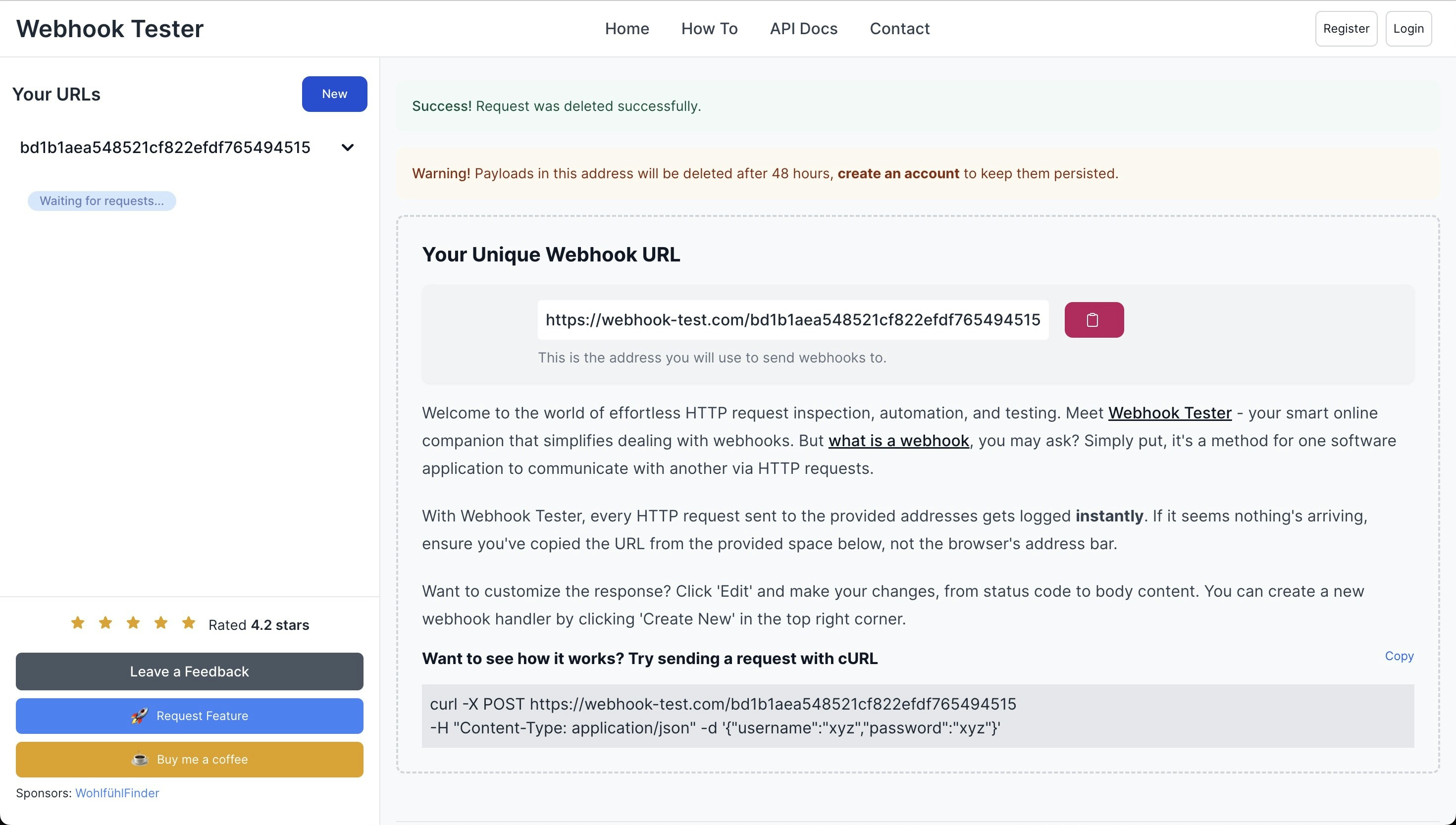
- Open your Twenty app, navigate to
/settings, and enable the Advanced toggle at the bottom left of the screen. - Create a new webhook.
- Paste Your Unique Webhook URL in the Endpoint Url field in Twenty. Set the Filters to
CompaniesandCreated.
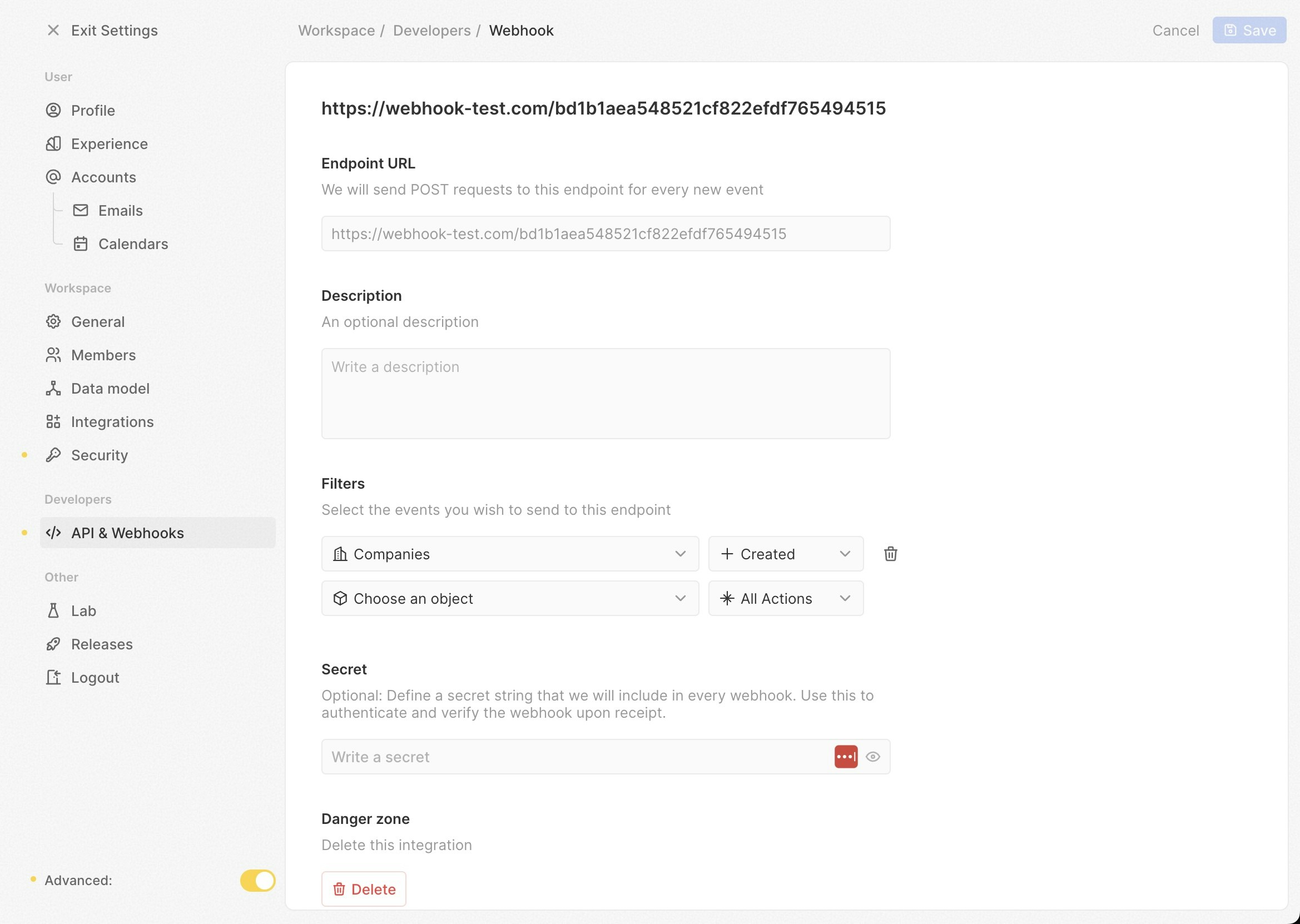
- Go to
/objects/companiesand create a new company record. - Return to webhook-test.com and check if a new POST request has been received.
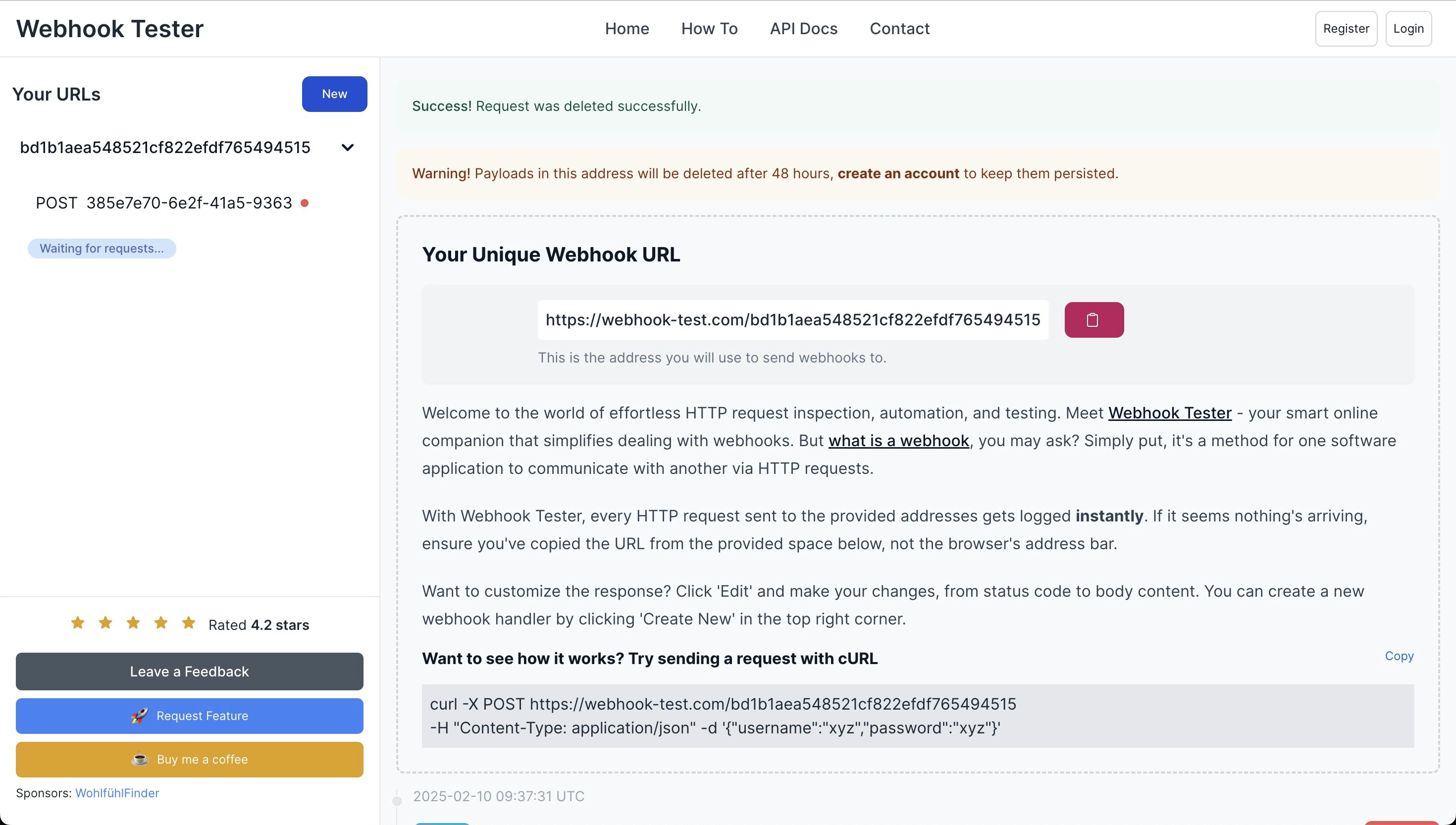
- If a POST request is received, your worker is running successfully. Otherwise, you need to troubleshoot your worker.
Front-end fails to start and returns error TS5042: Option ‘project’ cannot be mixed with source files on the command line
Comment out the checker plugin inpackages/twenty-ui/vite-config.ts, as shown in the example below:
Admin panel not accessible
RunUPDATE core."user" SET "canAccessFullAdminPanel" = TRUE WHERE email = 'you@yourdomain.com'; in the database container to get access to the admin panel.
When running workflow, workflow run fails with “Logic function execution is disabled. Set LOGIC_FUNCTION_TYPE to LOCAL or LAMBDA to enable.”
In production, logic functions are disabled by default. Set theLOGIC_FUNCTION_TYPE environment variable to LOCAL or LAMBDA to enable them. This can be configured via environment variables or through the admin panel database variables. See the Logic Functions setup guide for details.
When I type a message in AI chat, it doesn’t answer immediately and I must refresh the page to see the answer
That means your reverse proxy is missing the configuration for stream-based API responses. Below is an example Nginx configuration:1-click Docker Compose
Unable to Log In
If you can’t log in after setup:- Run the following commands:
- Restart the Docker containers:
database:reset command will completely erase your database and recreate it from scratch.
Connection Issues Behind a Reverse Proxy
If you’re running Twenty behind a reverse proxy and experiencing connection issues:-
Verify SERVER_URL:
Ensure
SERVER_URLin your.envfile matches your external access URL, includinghttpsif SSL is enabled. -
Check Reverse Proxy Settings:
- Confirm that your reverse proxy is correctly forwarding requests to the Twenty server.
- Ensure headers like
X-Forwarded-ForandX-Forwarded-Protoare properly set.
- Restart Services: After making changes, restart both the reverse proxy and Twenty containers.
Error when uploading an image - permission denied
Switching the data folder ownership on the host from root to another user and group resolves this problem.‘File Not Found’ error while testing Logic function in workflow
Runyarn command:prod application:rebuild-default-deps command in your twenty-server container to fix missing dependencies issue.
Getting Help
If you encounter issues not covered in this guide:-
Check Logs:
View container logs for error messages:
- Community Support: Reach out to the Twenty community or support channels for assistance.